BACK TAP / SETUP GUIDE
Your next long screenshot is two taps away.
Take overlapping screenshots. Double-tap the back of your iPhone. Find the stitched image in Photos, without opening the app.
Open the full guide with setup screenshots →
Add the Shortcut
Add the shortcut to your own Shortcuts library, then run it once to handle any permission prompts. You can rename it “Stitch Screenshots” to match this guide.
Add the Shortcut →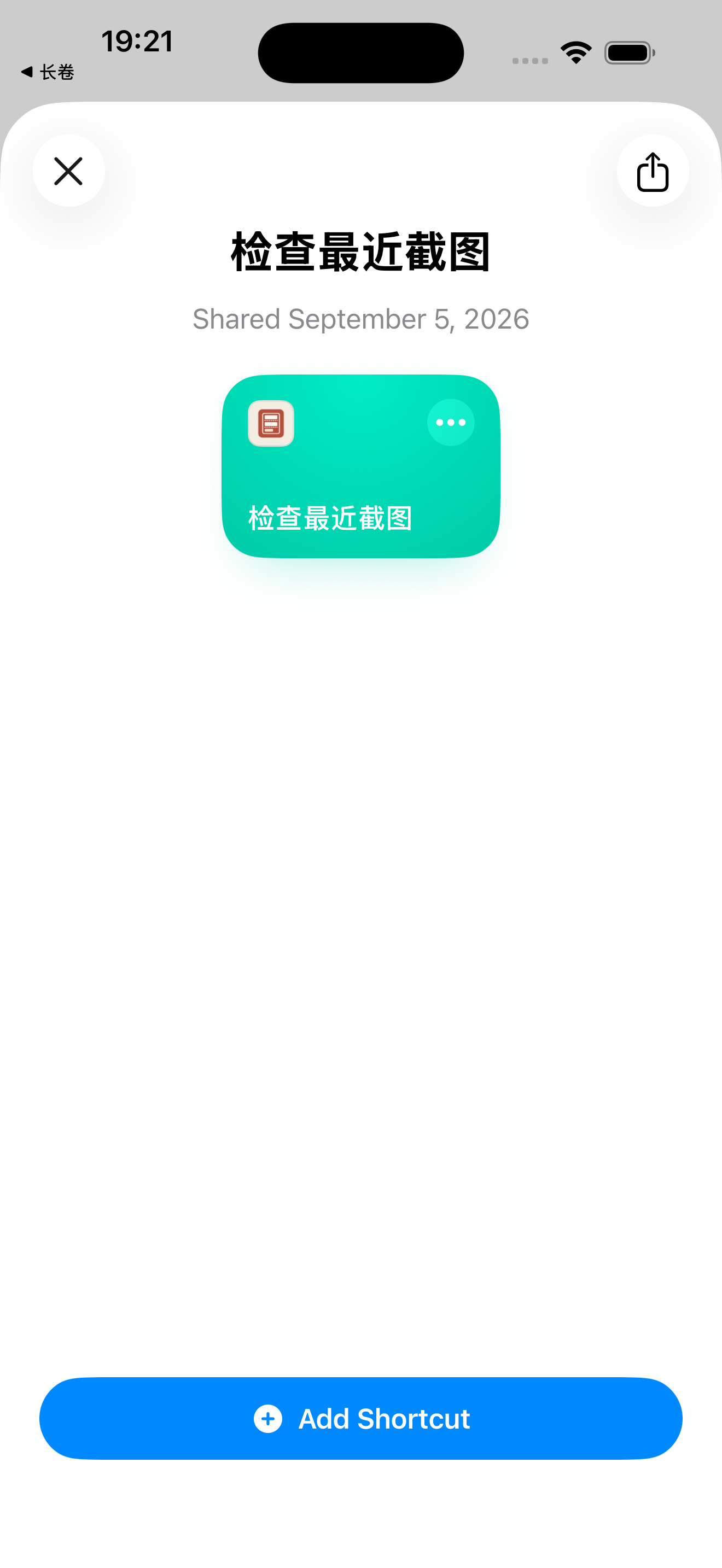
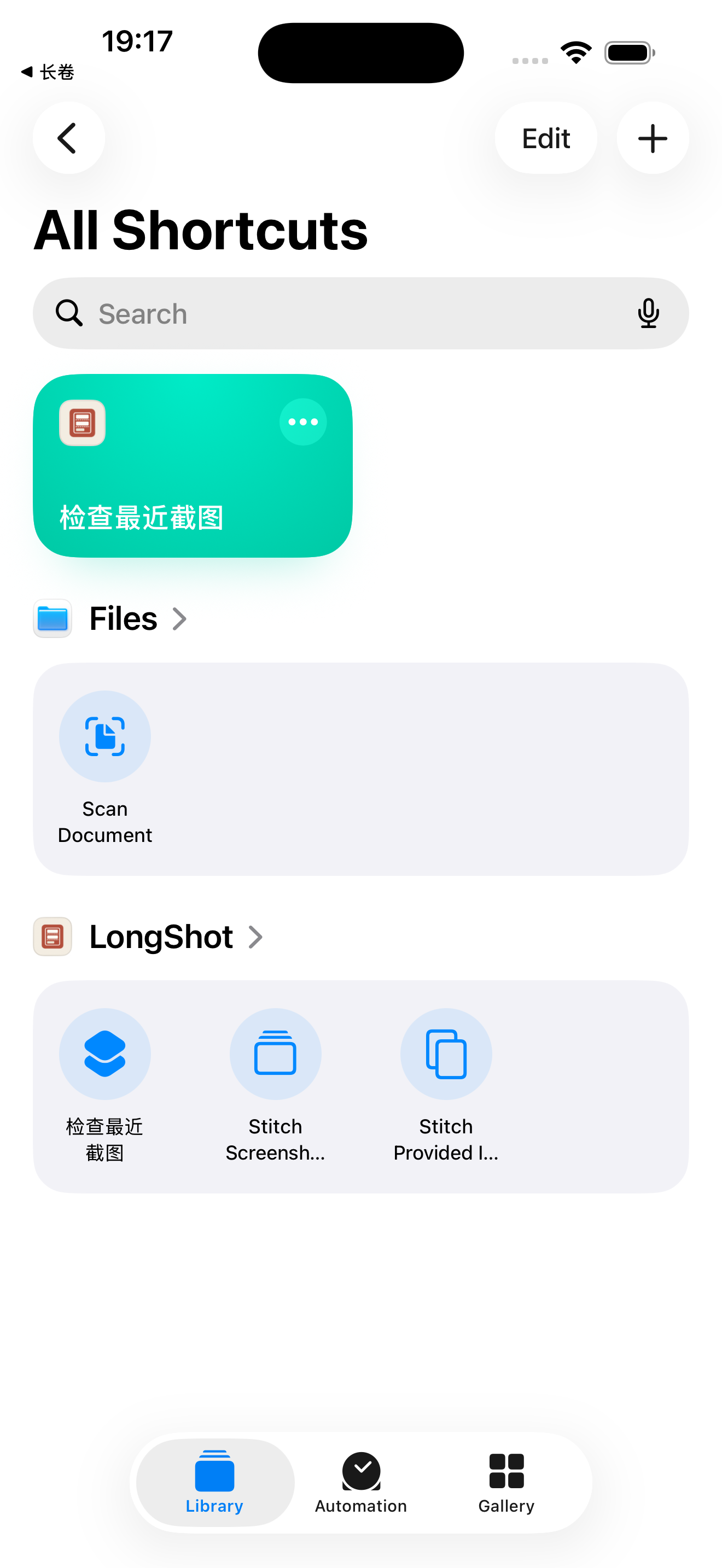
Screenshots: iOS 26.2 Simulator. Your interface may vary by version.
Assign Back Tap
- Settings
- Accessibility
- Touch
- Back Tap
- Double Tap
- Stitch Screenshots
Scroll down to Shortcuts and select the shortcut you added. If you kept its original name, select “检查最近截图” instead. Go back and confirm the shortcut name appears next to Double Tap.
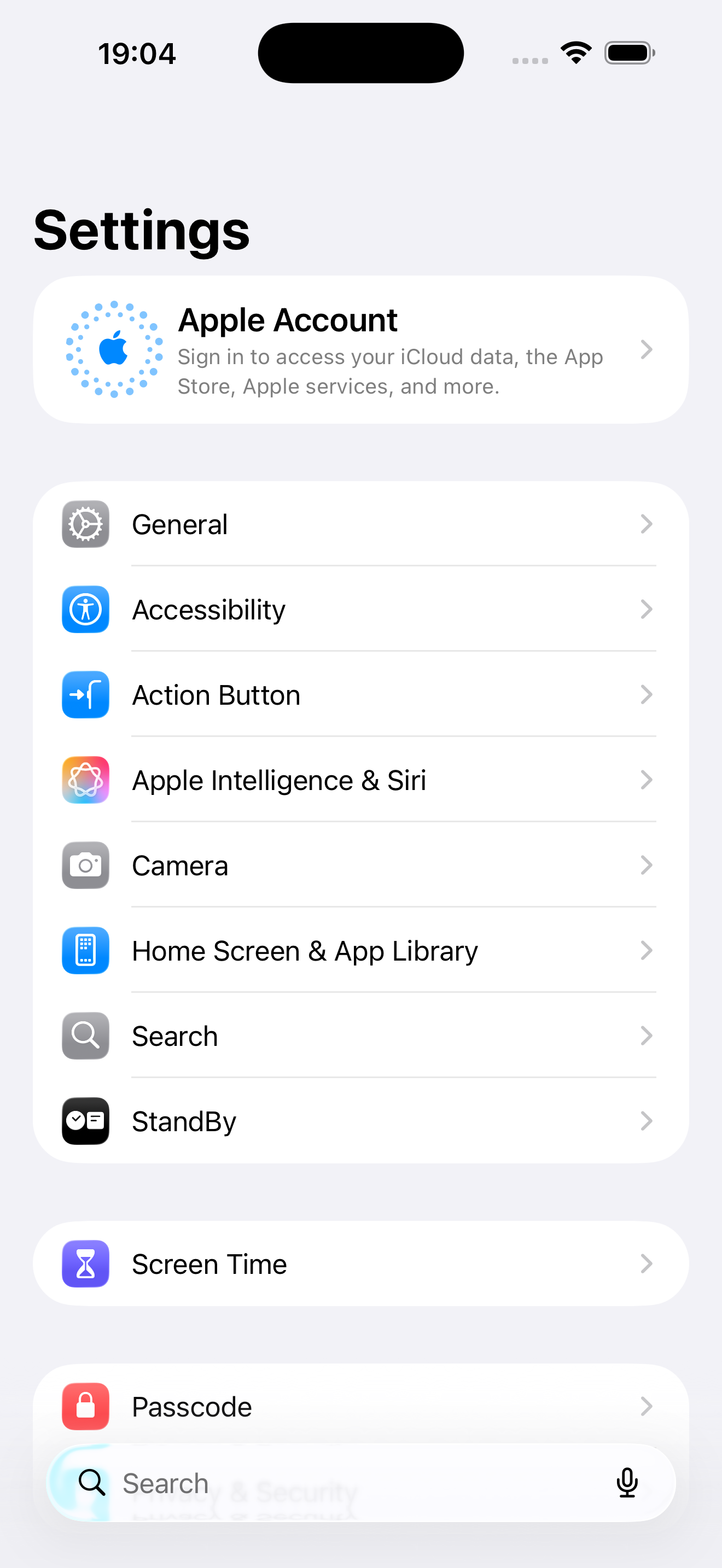
Path illustration, not a Settings screenshot
Continue in iPhone Settings
- Accessibility → Touch
Open Touch inside Accessibility.
- Touch → Back Tap
Scroll down to Back Tap. You do not need to turn on AssistiveTouch.
- Back Tap → Double Tap
Choose Double Tap to assign the gesture.
- Shortcuts → 检查最近截图
Scroll to Shortcuts and select the saved shortcut. If you renamed it, choose that name.
Go back one screen to check
Renamed it “Stitch Screenshots”? That name should appear here instead.
Screenshots: iOS 26.2 Simulator. Your interface may vary by version.
Try it
- Keep your iPhone unlocked. Capture two or three consecutive screenshots with some shared content between them.
- Double-tap the back of your iPhone. Let the shortcut finish before tapping again.
- Open Photos and check the new long image, including each join. The original screenshots remain in your library.
Troubleshooting
The shortcut is missing from Back Tap
Open Shortcuts and confirm it is in your library. Check its saved name, then reopen Settings → Accessibility → Touch → Back Tap and scroll to the Shortcuts section.
Double-tapping does nothing
Run the shortcut directly in Shortcuts first. If that works, check the Double Tap assignment and try a deliberate double tap. If Back Tap is absent in Settings, check device support in Apple’s guide.
There is no long image in Photos
Open LongShot to check photo access and your remaining free allowance. Use a fresh pair with visible overlap from the same screen. Unrelated screenshots cannot be stitched reliably. Large batches may require continuing in the app.
Verified overlap, no ghosting. On-device, no ads, no account. 10 stitches a month free.