
Set up Back Tap for LongShot: an illustrated guide
Add the LongShot shortcut, run it once, then assign it in Accessibility → Touch → Back Tap. You do not need AssistiveTouch. Adding the shortcut alone does not assign the gesture.
Add the shortcut to your iPhone
Open LongShot first and complete Photos access setup. Your installed version must support stitching recent screenshots from Shortcuts. If an action is unavailable, check your app version.
Requirements: iPhone 8 or later, iOS 16 or later, and a LongShot version that supports this shortcut action. Apple provides Back Tap from iOS 14; LongShot itself requires iOS 16 or later.
If a prompt asks to delete source screenshots
Some older versions may ask to delete the originals after saving the long image. This is optional cleanup, not required photo access. To keep the originals, choose Cancel or Don’t Allow, not Delete; the long image is already saved. Check it in Photos before deciding whether to clean up.
Open the link on your iPhone and follow the Get Shortcut or Add Shortcut prompt. Then check the Library in Shortcuts for the saved tile.
Keep the saved name in mind
The original name is “检查最近截图”. This custom name stays in Chinese even when your iPhone uses English. If you rename it, choose your new name later.
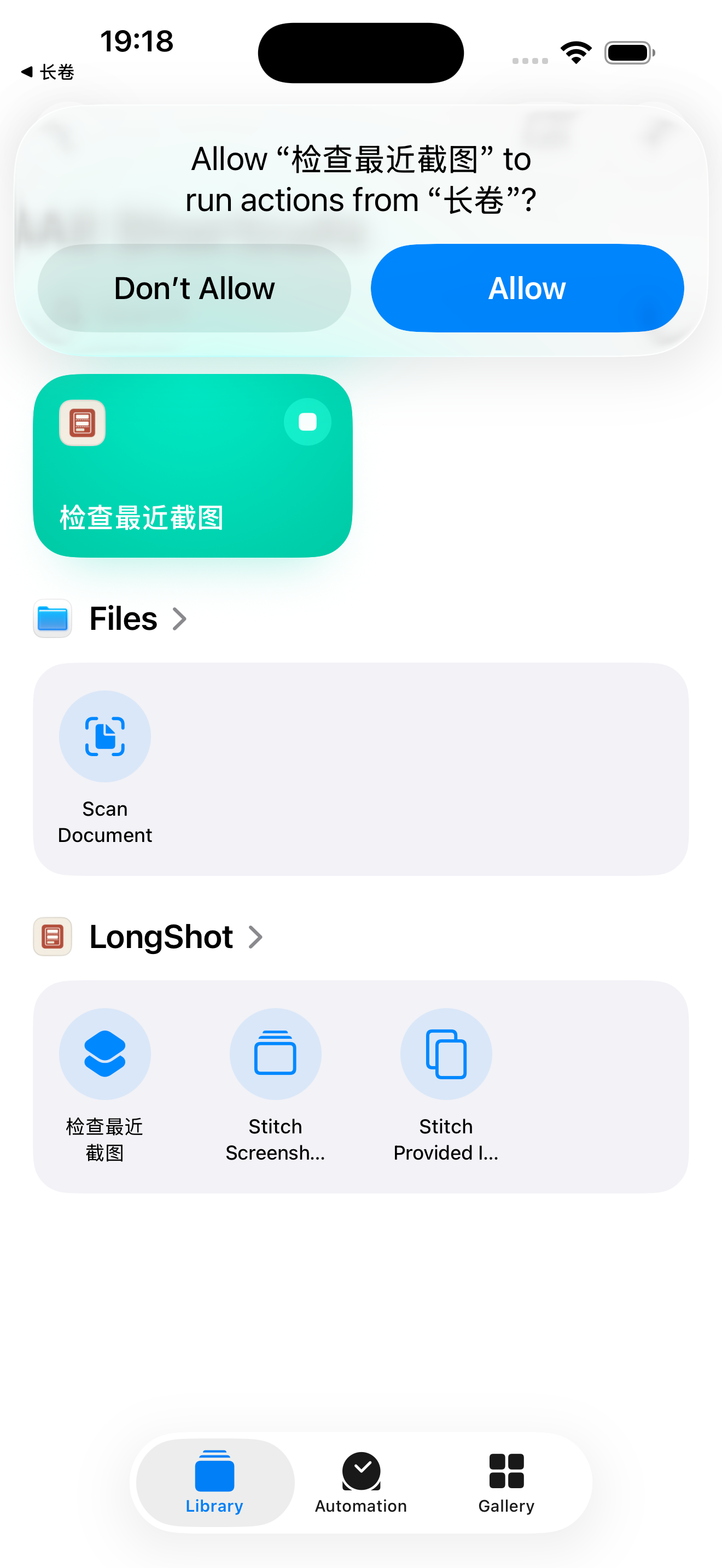
The setup screenshots below were captured in the iOS 26.2 Simulator on September 6, 2026. Open any image at full size; your interface may vary by version.
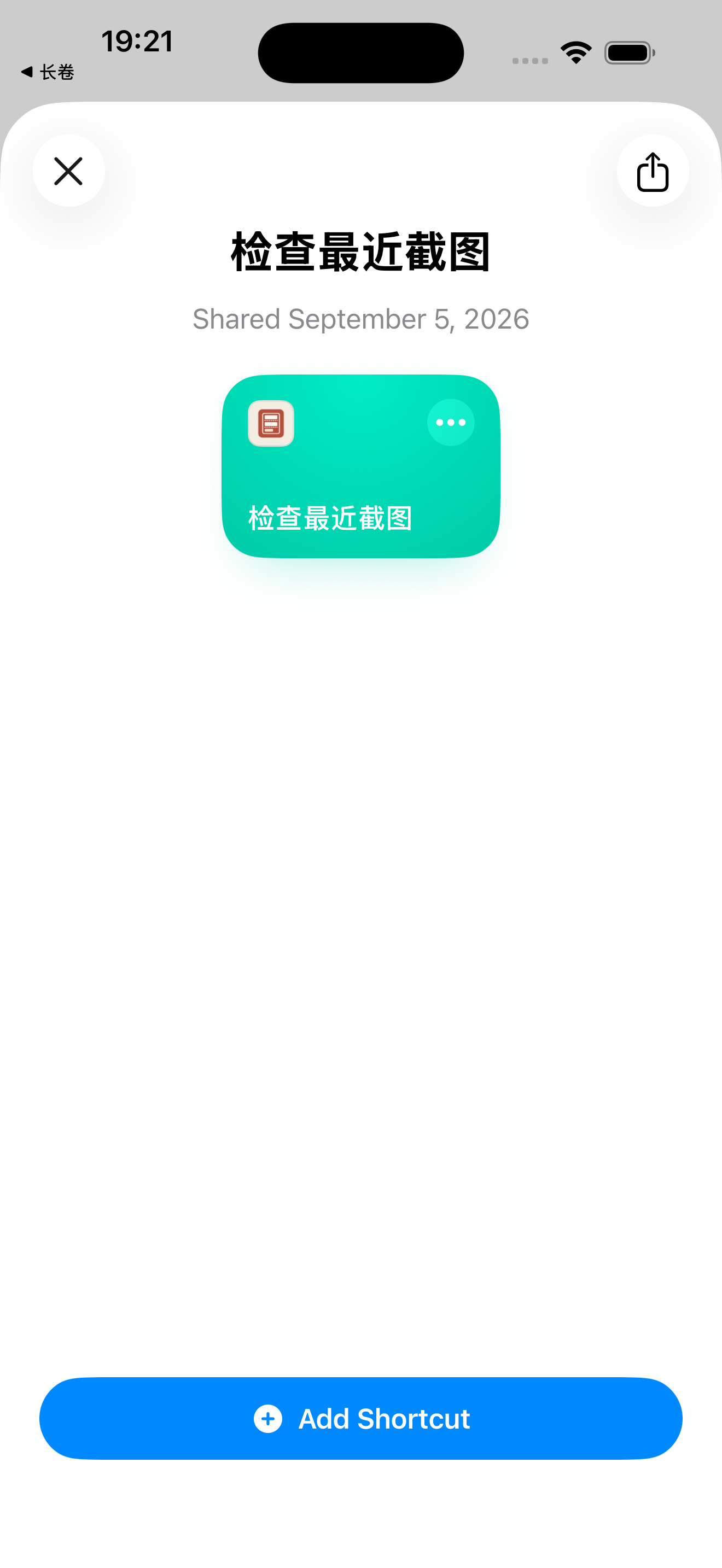
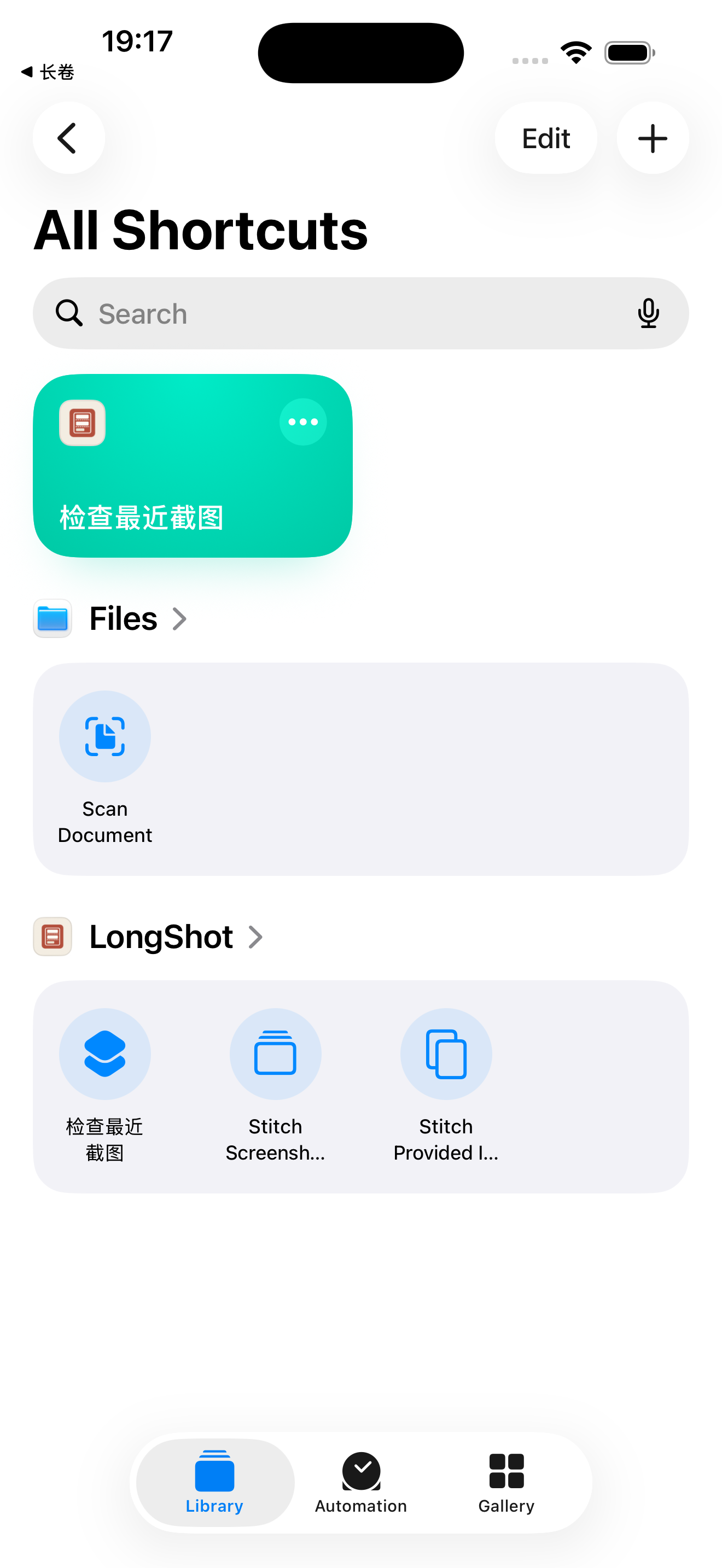
Run it once and complete first-use permissions
- Photo access — Open LongShot and respond to the Photos prompt. Full access is recommended for finding recent screenshots automatically; limited access only exposes the photos you selected.
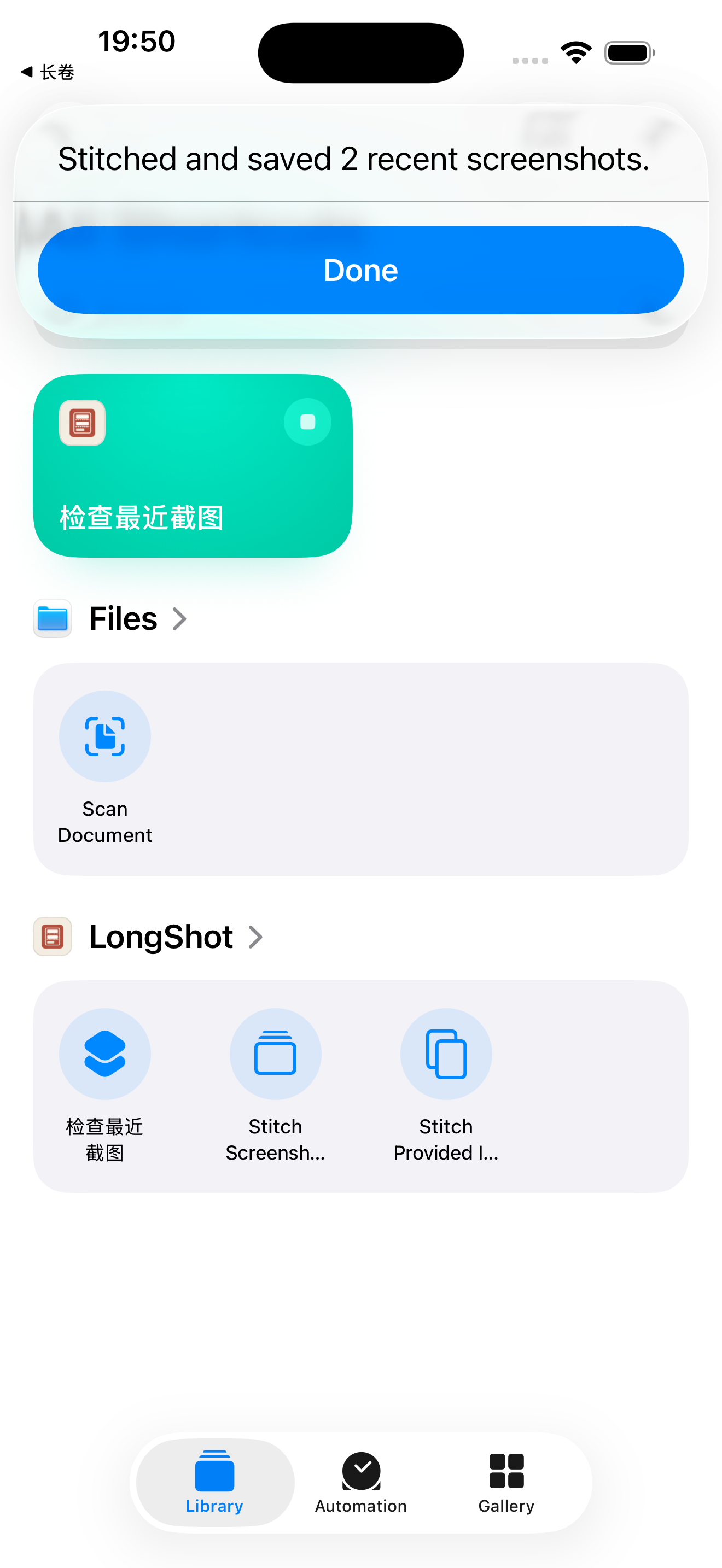
- Permission to run LongShot actions — Return to Shortcuts and tap “检查最近截图”. Watch the top of the screen: if it asks to run LongShot actions, review the prompt and tap Allow. This is separate from photo access.
“No overlapping screenshots were found” is an expected response when there are no suitable screenshots. To check a successful save, take two overlapping screenshots and run it manually. Confirm the long image appears before assigning the gesture.
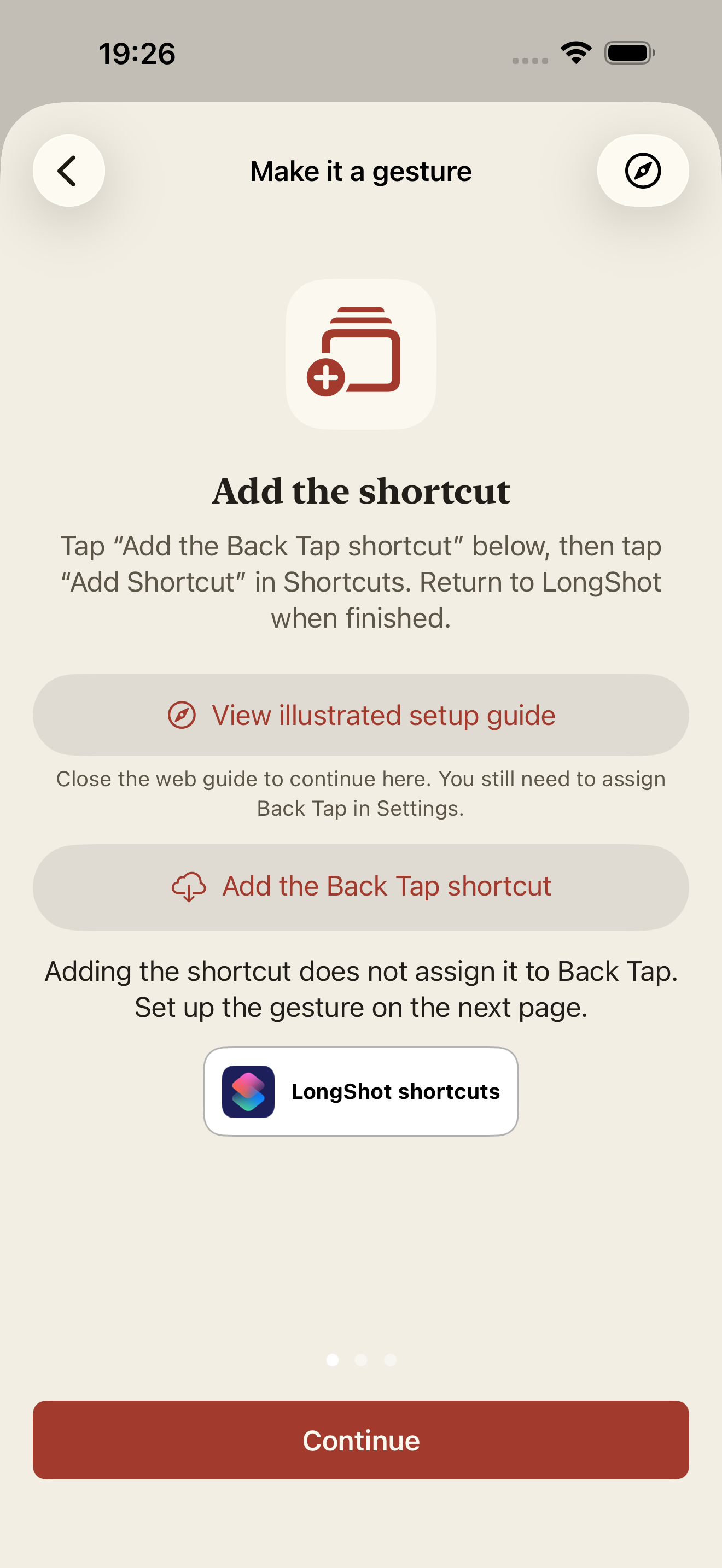
Added and tried it? Assign the gesture →
Assign it to Back Tap
Open Settings on your iPhone and follow the steps below. Neither this website nor LongShot can change this system setting for you.
The Settings path is the same in iOS 17 and iOS 18: Settings → Accessibility → Touch → Back Tap. These versions do not change the saved shortcut name.
Two settings you do not need
Do not turn on the AssistiveTouch floating button or configure Accessibility Shortcut for this setup. Open Back Tap inside Touch instead.
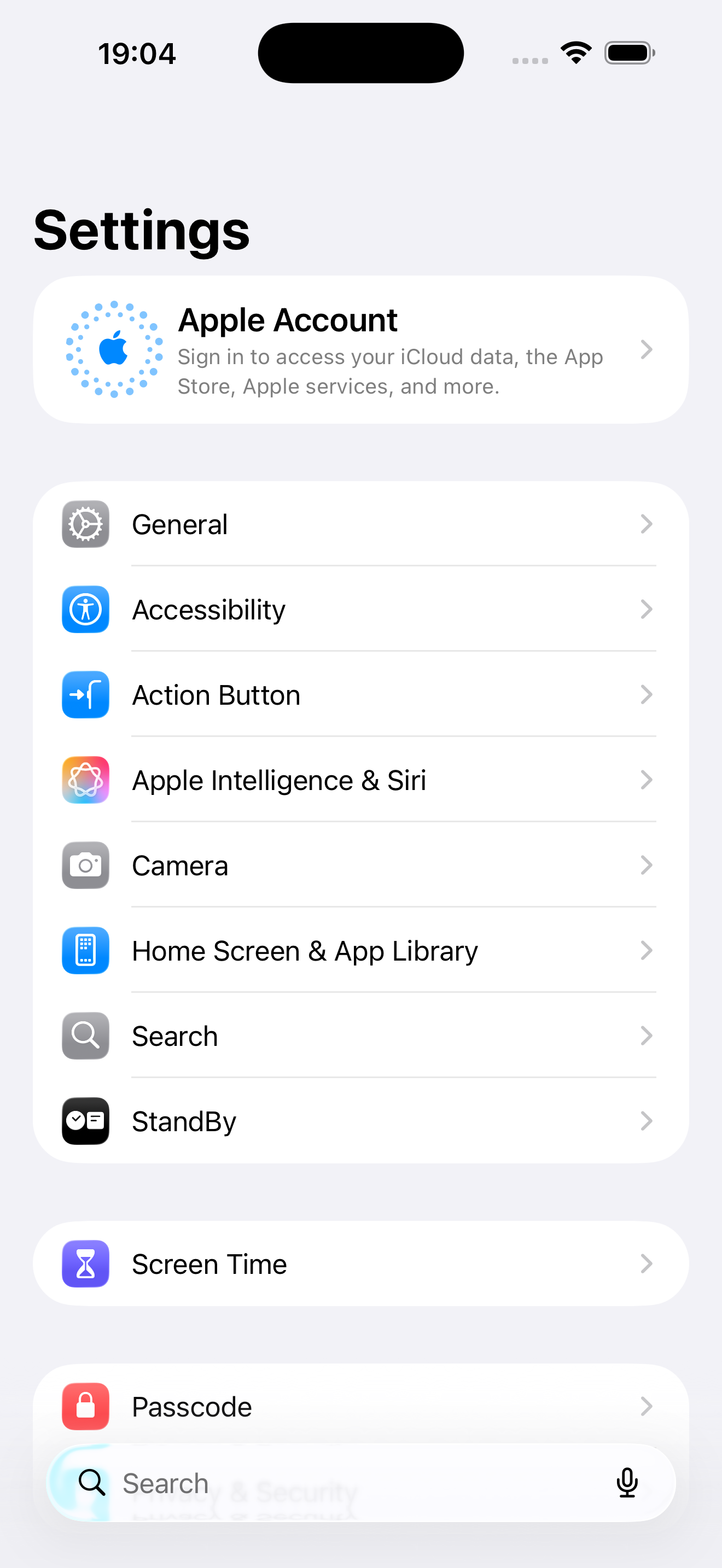
Follow this path next
Setup path illustration · Based on Apple’s instructions, not a Settings screenshot.
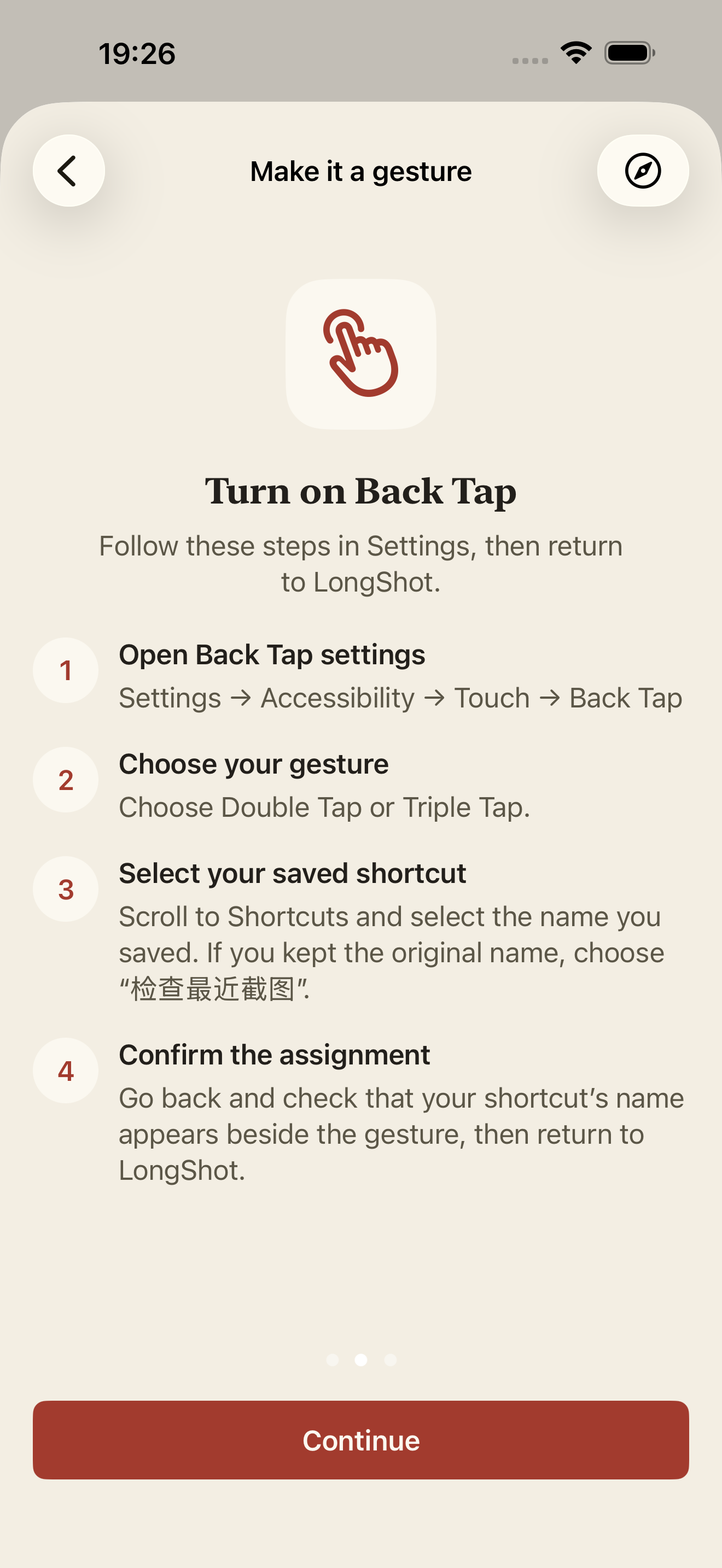
Settings → Accessibility → Touch → Back Tap → Double Tap or Triple Tap → Scroll down to Shortcuts → 检查最近截图
- Open the setting — Settings → Accessibility → Touch → Back Tap
- Choose a gesture — Choose Double Tap or Triple Tap.
- Scroll down to Shortcuts — Select the saved shortcut “检查最近截图”, or your new name if you renamed it. Look for the shortcut name, not just the LongShot app name.
- Go back to confirm — Return one level and check that the shortcut name appears beside the gesture. Then switch back to this guide.
Already using Double Tap to take a screenshot? Assign stitching to Triple Tap to keep the existing action. Return one level and check the saved name beside your chosen gesture.
This Simulator did not expose Touch / Back Tap, so the remaining path follows Apple’s documentation. Assigning the gesture and physically tapping the phone still need a supported iPhone.
Try it with two screenshots
Take two consecutive screenshots with overlapping content. Tap the back of your iPhone using the gesture you chose. After a successful stitch, look in Photos for the saved long image.
- Take one screenshot, scroll while keeping at least two lines of content in common, and take a second screenshot of the same page.
- Unlock your iPhone and tap its back the number of times you assigned. Approve only permissions you want to grant. If asked to delete the originals, cancel to keep them; deleting is not required to finish stitching.
- Open Photos, find the new long image, and zoom in to check the join and text. If no image appears, use the checks below.
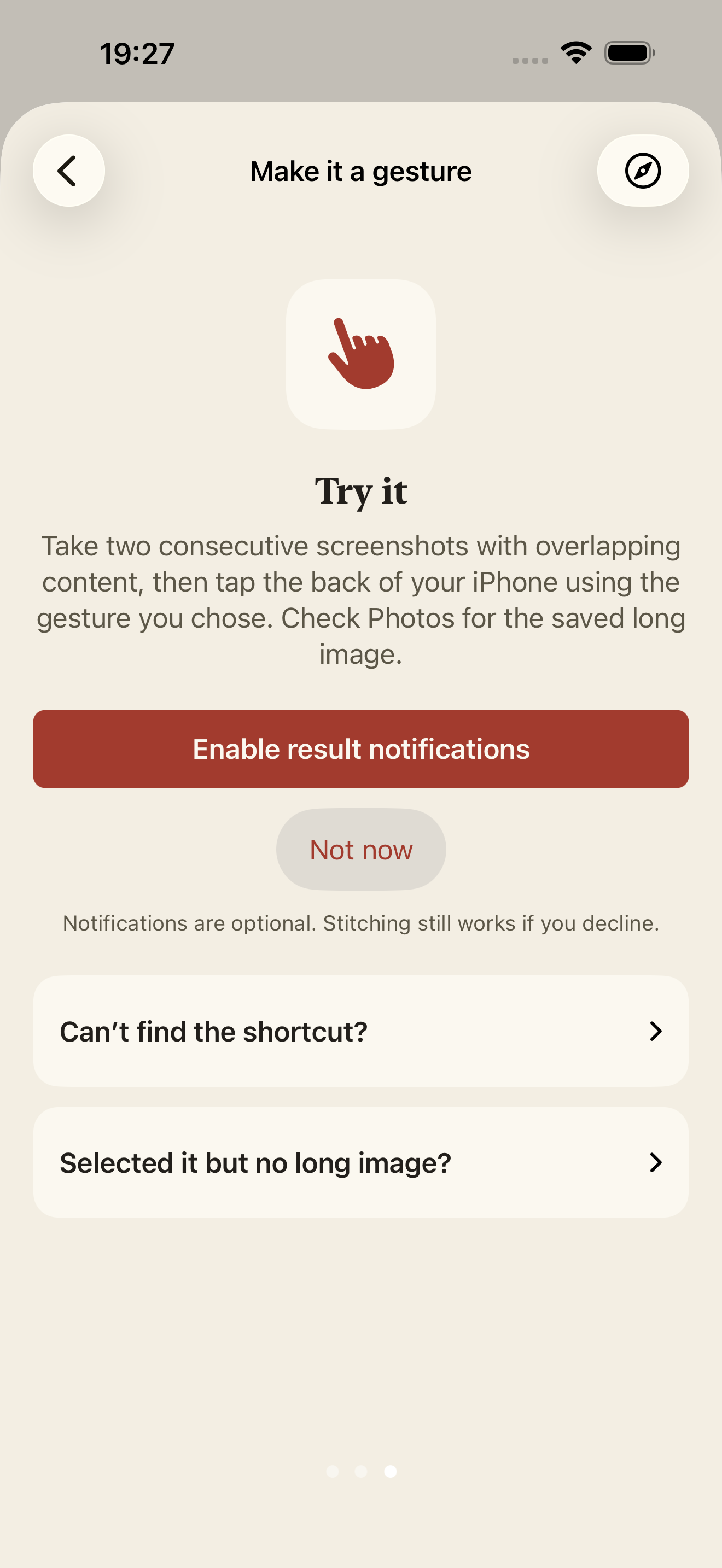
You can enable result notifications on the third screen of the LongShot guide later. They are optional. No notification does not necessarily mean nothing ran; check Photos first.
After your first successful stitch, opening LongShot may show the three-screen gesture guide. Tap Continue through it; you can choose Not now for notifications on the last screen and carry on.
Separate the shortcut from the gesture
- A manual run fails too → Check photo access, overlapping content, app version and remaining allowance first.
- A manual run saves an image, but Back Tap does not → Check Double Tap versus Triple Tap, the exact saved name, and the selected item under Shortcuts.
Still running with no result?
Check the top of the screen for a prompt asking to let the shortcut run LongShot actions. Avoid triggering it repeatedly; respond to the current prompt and then check the result.
My shortcut is missing from the list
Open Shortcuts, confirm it was added, and check its exact name. Reopen the Back Tap action list and scroll down to the Shortcuts section. Seeing LongShot under App Shortcuts alone does not mean you added this shared shortcut.
It is assigned, but no long image appears
Run it directly in Shortcuts once and follow any message. This performs a real stitch and may save an image. If it reports no overlap, no remaining allowance, or asks you to open the app, handle that in LongShot. Only after a direct run creates a long image should you check the Back Tap assignment and gesture again.
Back Tap or the LongShot action is unavailable
Use a physical iPhone that supports Back Tap and check your iOS version. If the LongShot action is unavailable, check your installed app version rather than repeatedly adding the shortcut. You can still take overlapping screenshots and open LongShot to use the original preview flow.
Return to LongShot and carry on
Opened this page inside the app? Tap Done in the browser to return to the same guide step. If you opened it in Safari, switch back to LongShot.
To remove the gesture, return to the same Back Tap page and set that gesture to None.
Screenshots and this guide do not establish that your device is configured. Check the assigned name in Settings and the actual result in Photos.
Related
- How to Take a Long Screenshot of a Text Conversation on iPhone
- How to Take a Scrolling Screenshot on iPhone Without Installing an App
- How Much Overlap Do Screenshots Need to Stitch Correctly?
Sources checked: 1 · 2 · 3 · 4
Something not working? Email me: longshotapp@163.com
LongShot for iPhone
Combine overlapping screenshots into one long image.