
How to Screenshot an Entire Text Conversation on iPhone (2 Ways)
iPhone has no scrolling screenshot in Messages. Stitch overlapping screenshots or record the screen, then check that no message is missing.
iPhone has no scrolling screenshot in Messages. To screenshot an entire text conversation, capture it in overlapping screenshots, stitch them into one image, then check the joins and save it to Photos. This also works when one long message is taller than the screen.
iPhone can take a full-page screenshot, but only in Safari and other apps that support it. In Messages, WhatsApp, WeChat, Instagram DMs, and most chat apps, that option simply isn't there. The other option is to record your screen while scrolling and use an app that converts the recording into a long image.
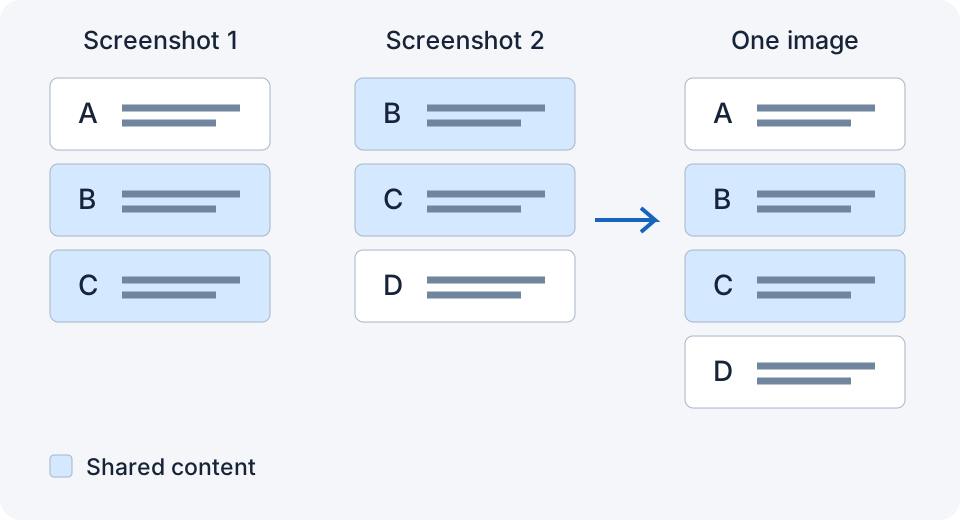
This guide covers both, plus the mistakes that make stitched screenshots come out wrong.
Option 1: Take overlapping screenshots and stitch them
This is the most reliable way, and it works in apps that allow screenshots.
- Open Messages, WhatsApp, or the chat app you use. Scroll to the first message you want to keep and dismiss the keyboard so it does not cover the conversation.
- Take a screenshot (side button + volume up on Face ID models; side button + Home on supported Home-button models).
- Scroll down so that a few readable lines or the last short message from your first screenshot are still visible at the top of the screen. That shared part is the overlap, and it's what lets a stitching app line the images up.
- Take the next screenshot. Repeat until you reach the end.
- Open a stitching app. Depending on the app and your Photos permissions, let it find the screenshots or select them yourself, then combine them.
- Read the first and last messages and each join at full size. Save the finished image to Photos or use the app’s share control; check the saved result before deleting any originals.
How much overlap do you need? At least two clear lines of text or one complete message with distinctive content. A few pixels isn't enough for most apps to match confidently.
For example, capture 1 might contain messages 1–6, capture 2 messages 4–9, and capture 3 messages 7–12. The shared messages connect the sequence. This is an illustration, not a required message count. Use distinctive text rather than a blank area, repeated “OK” bubbles, or half a line.
Try three overlapping chat screens
These fictional test images recreate the interface styles of Messages, WeChat and WhatsApp; they are not device captures. Each set repeats text across neighboring screens. Open the originals and compare both joins with the stitched result.
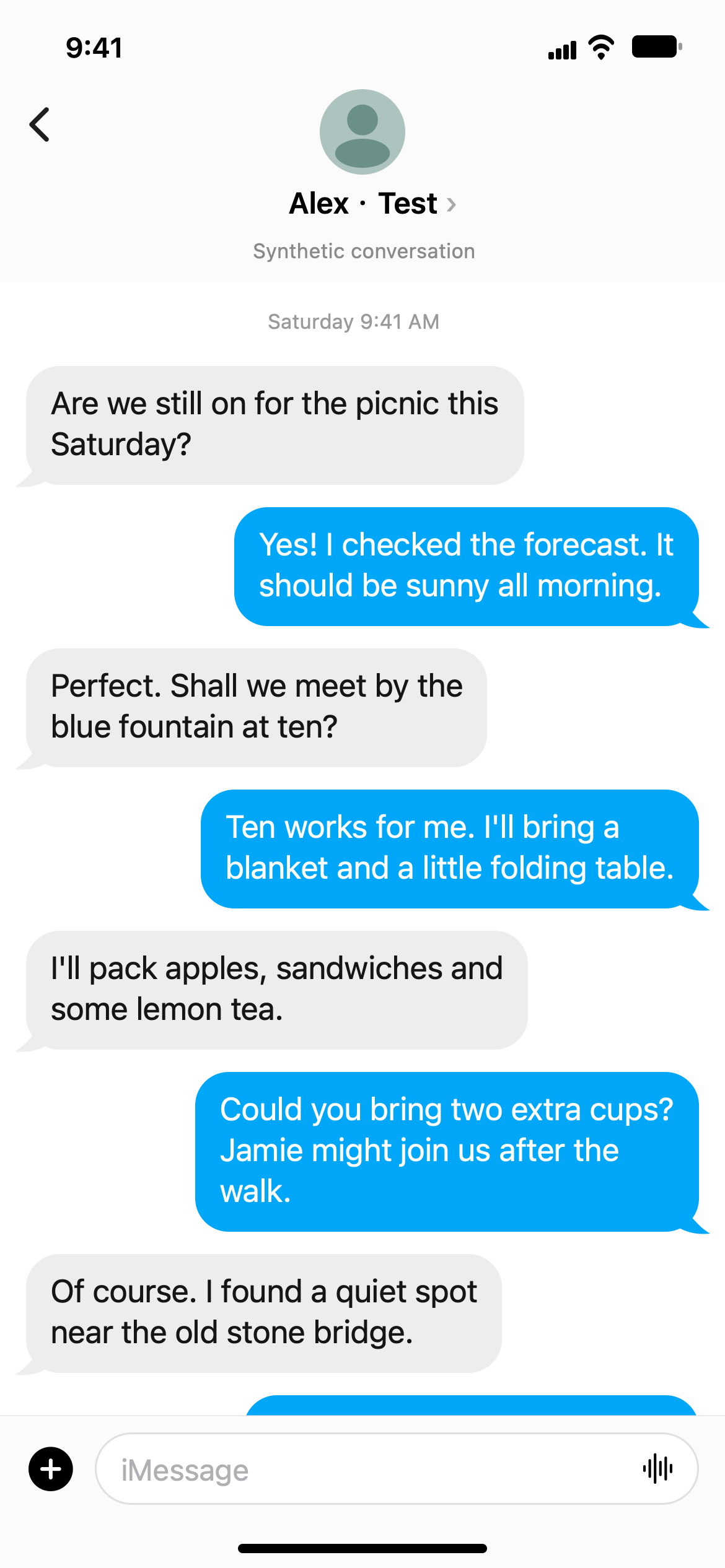
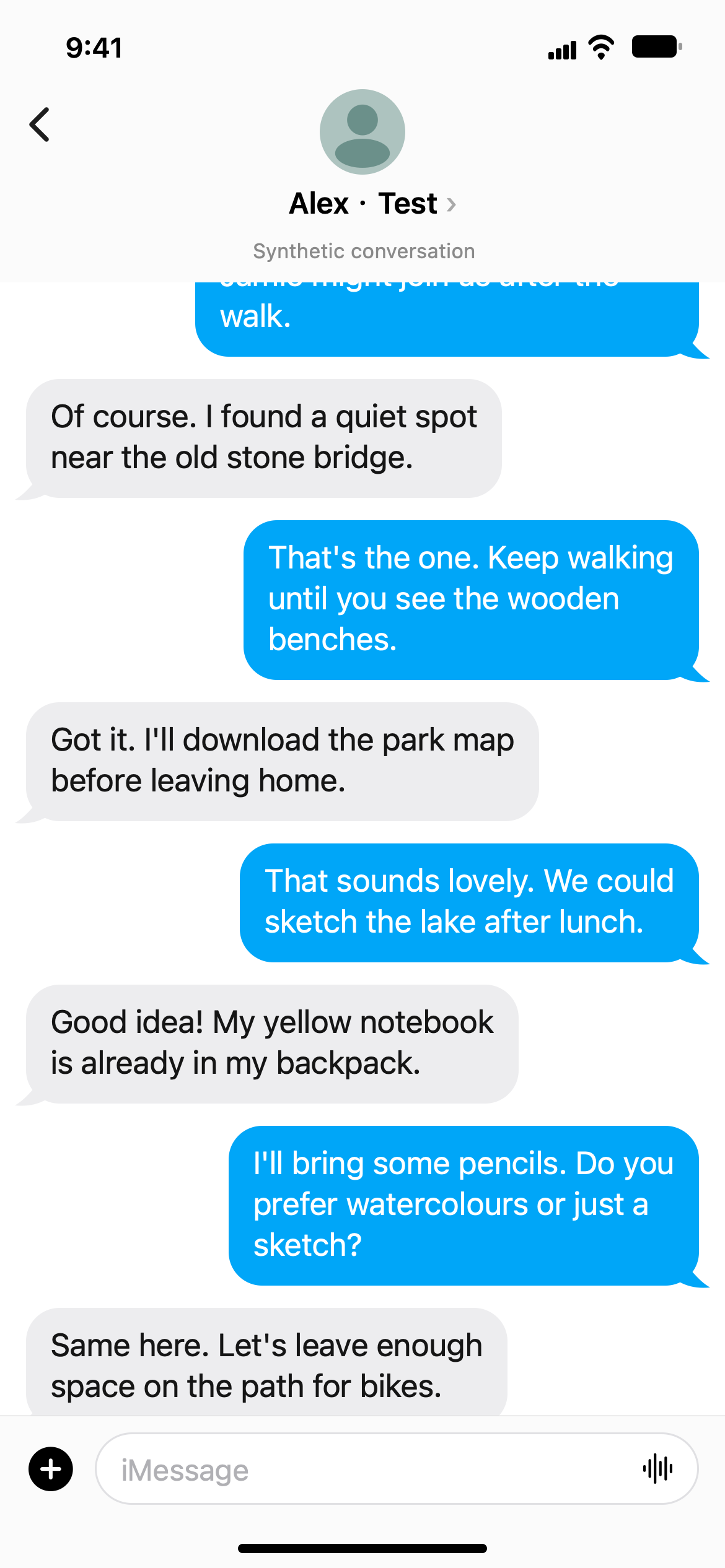
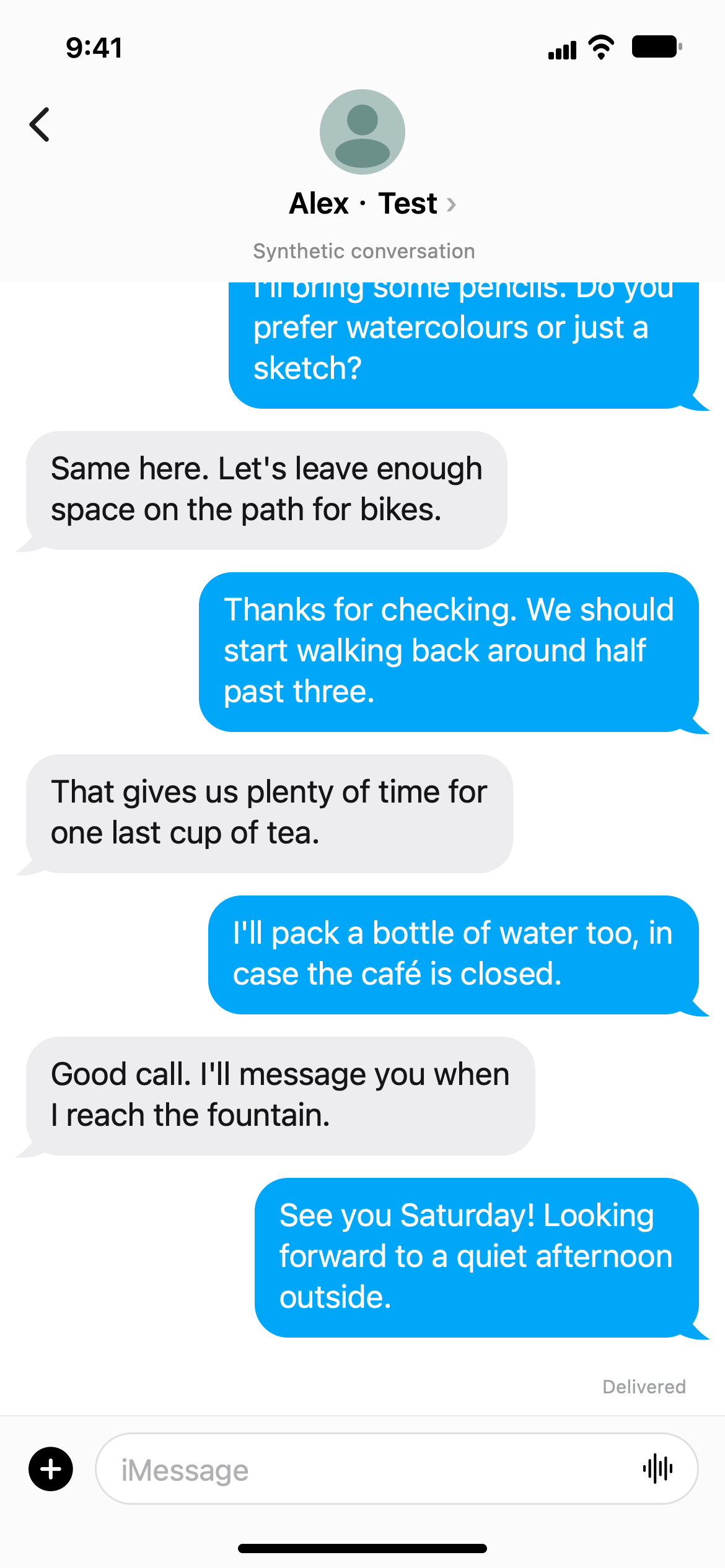
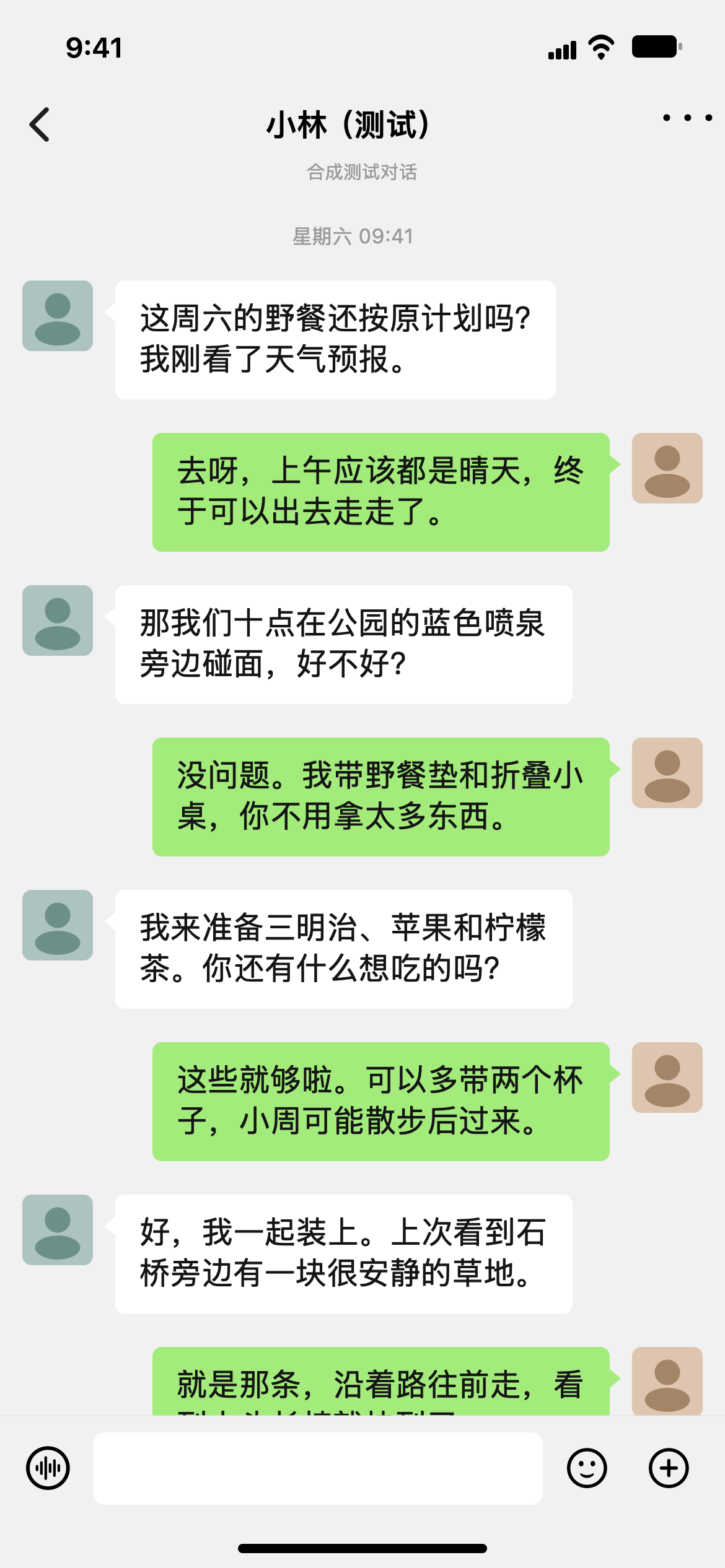
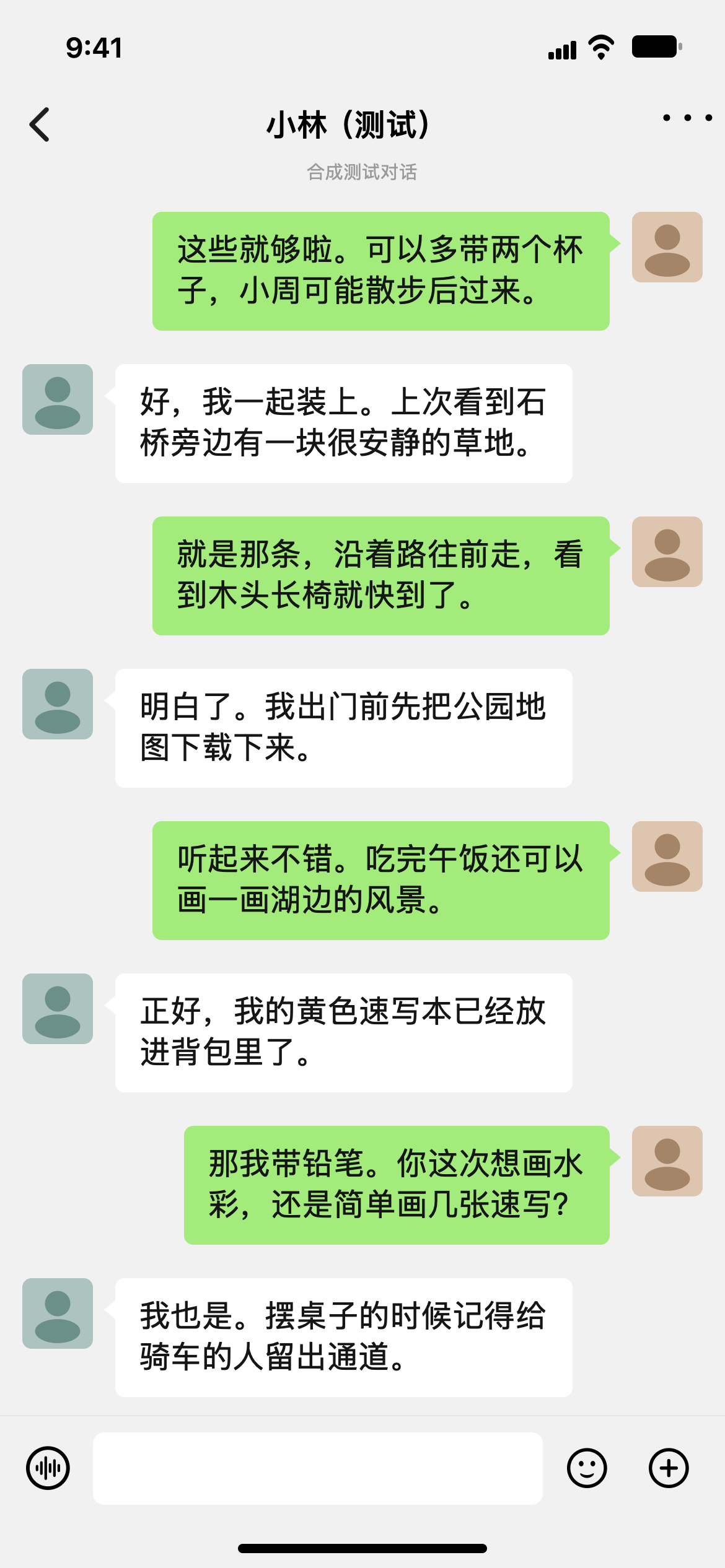
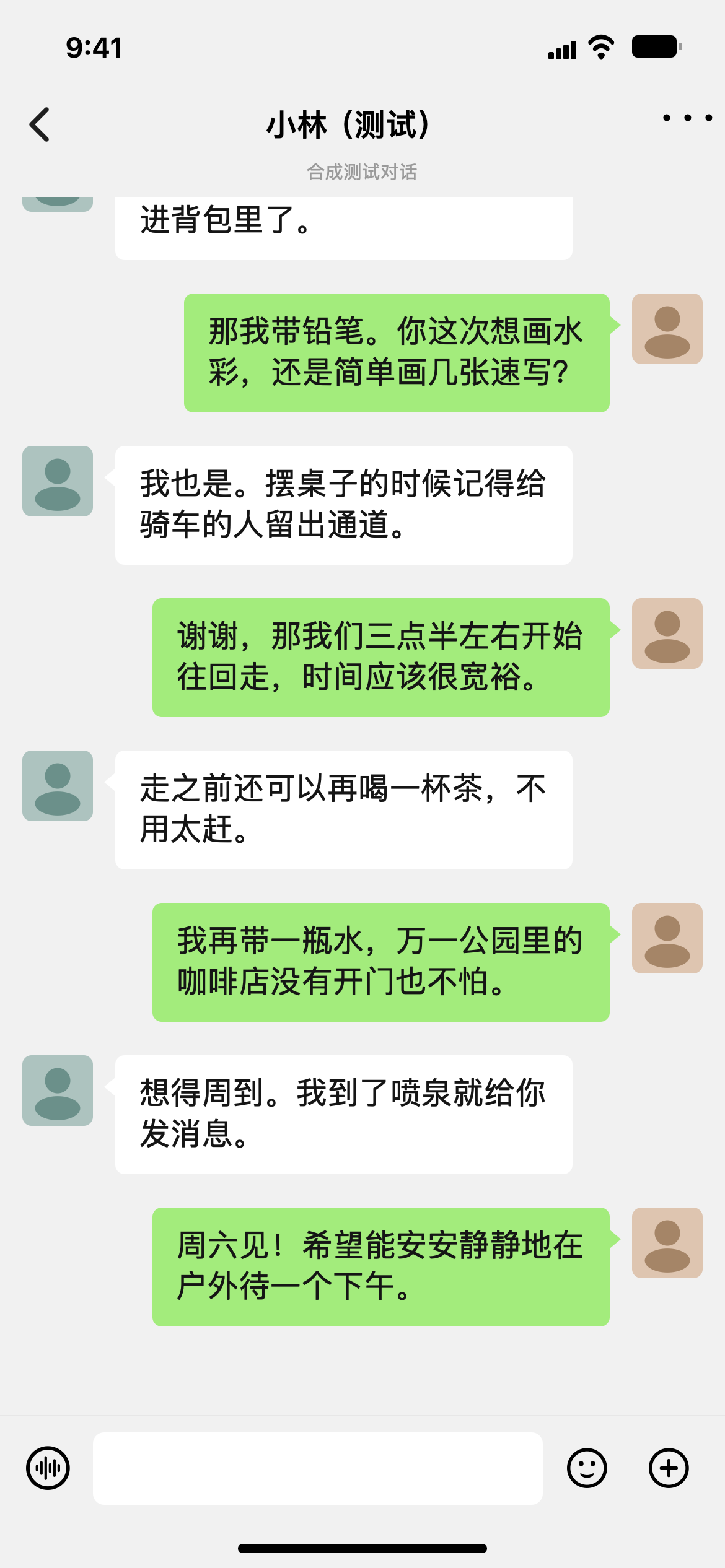
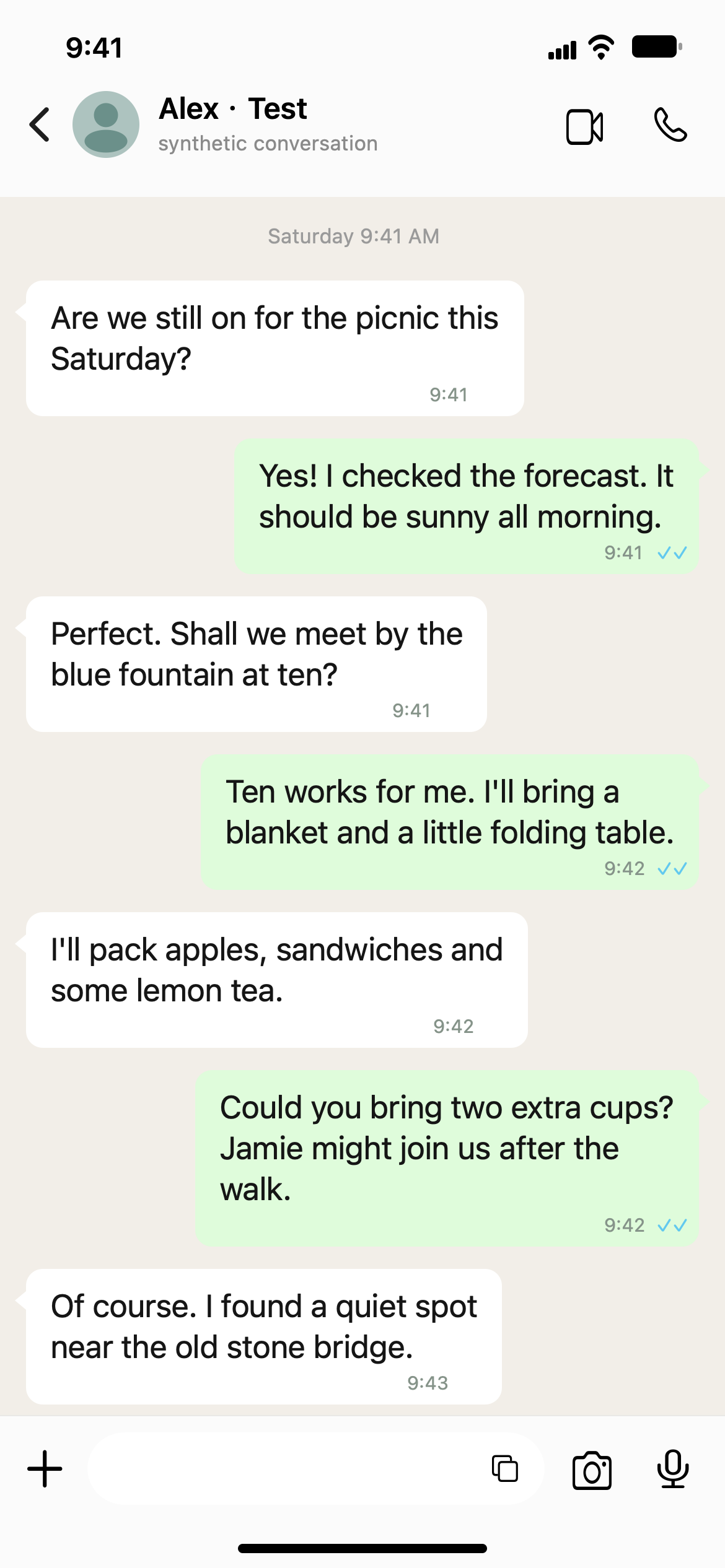
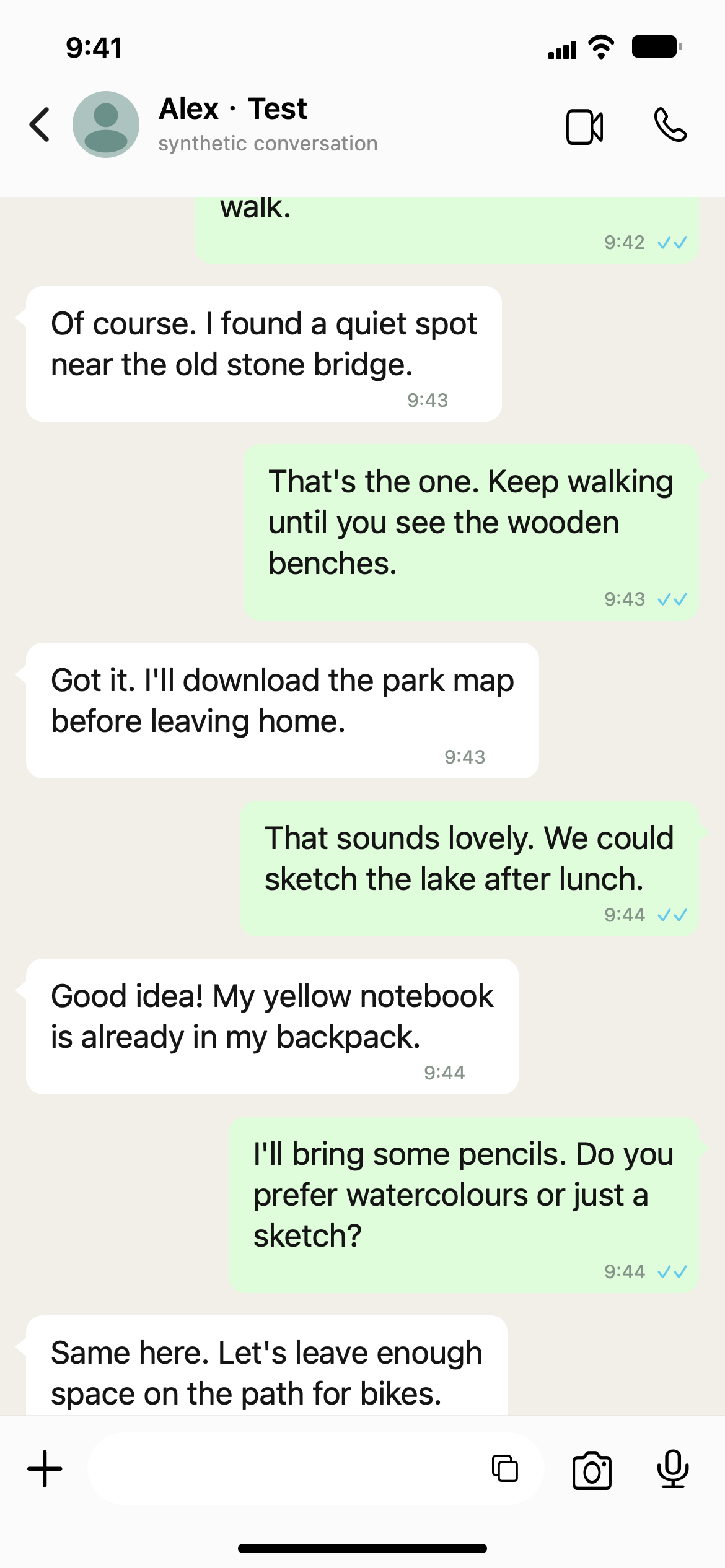
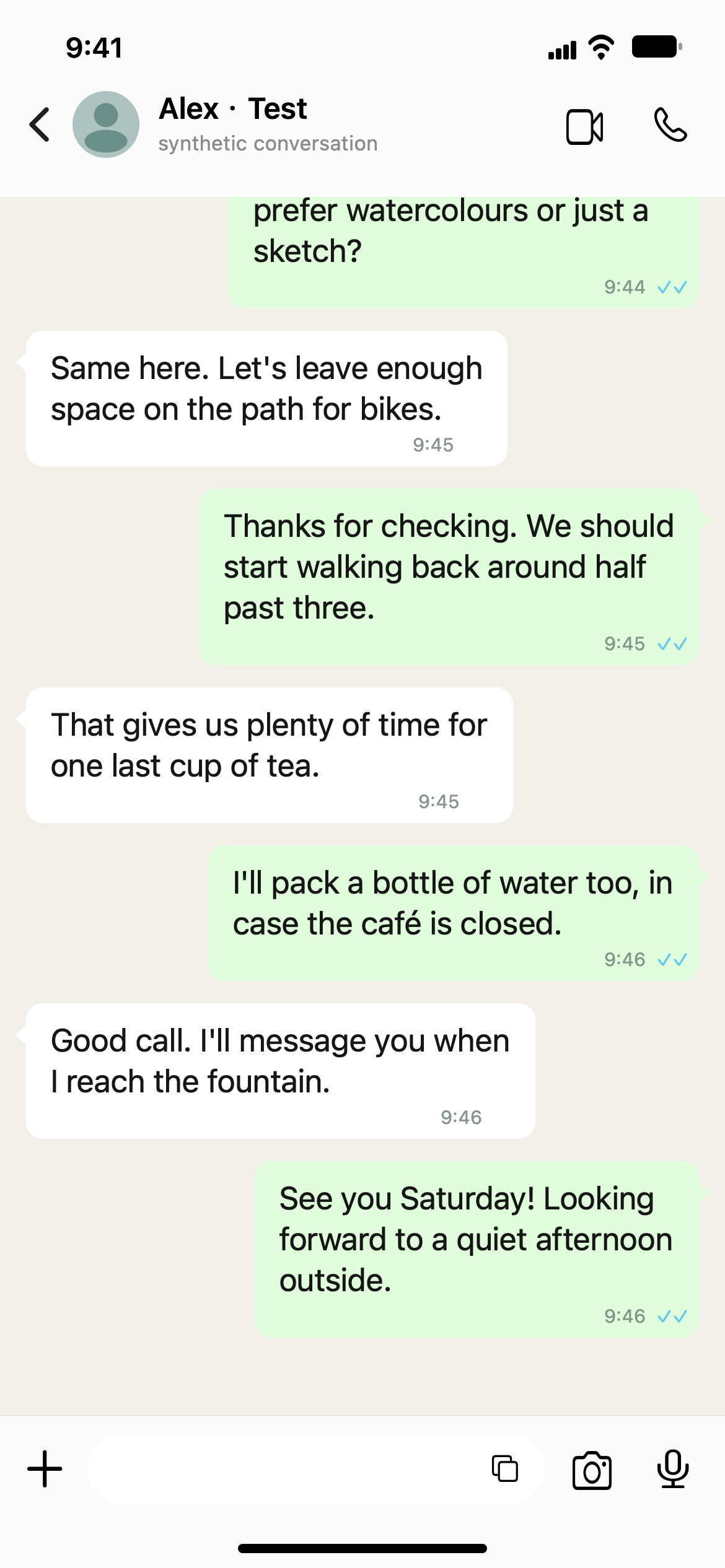
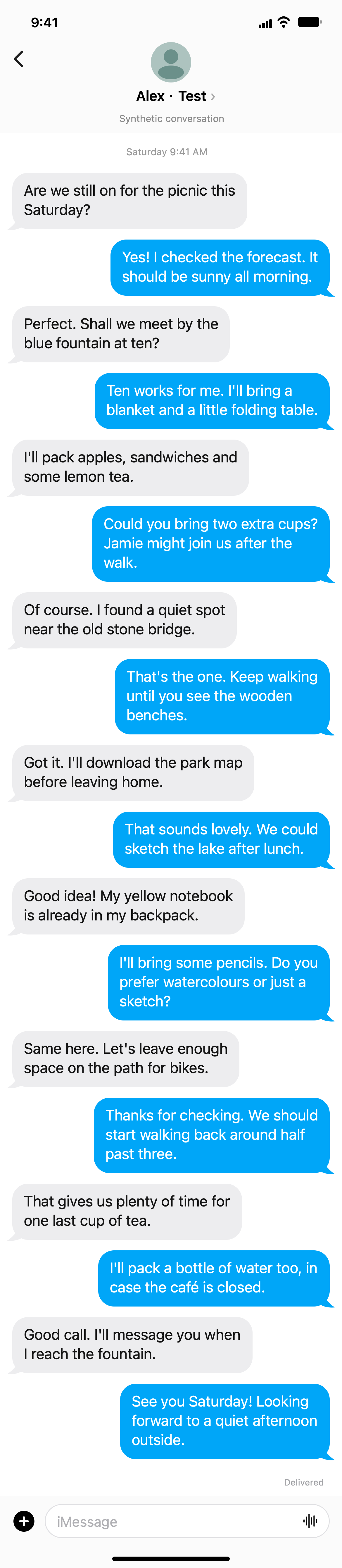
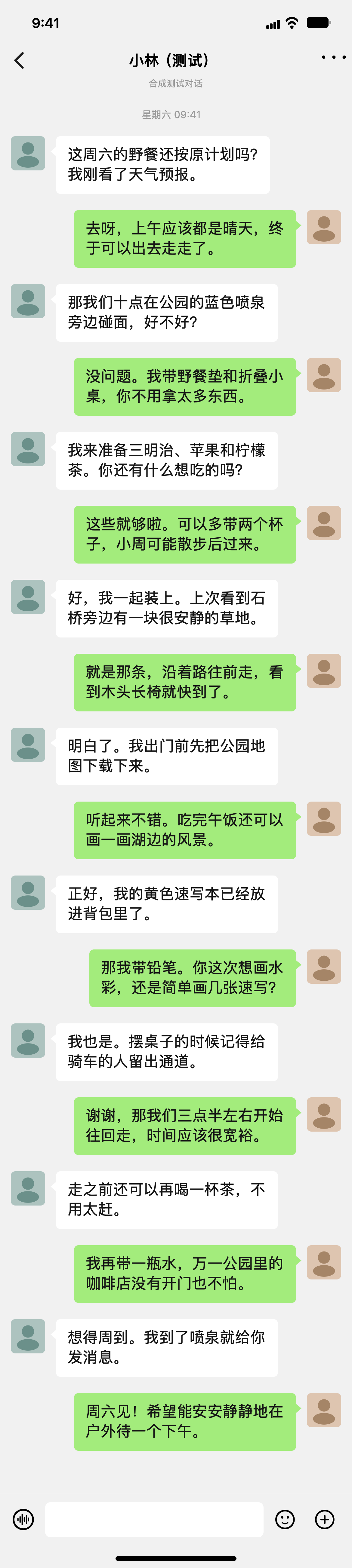
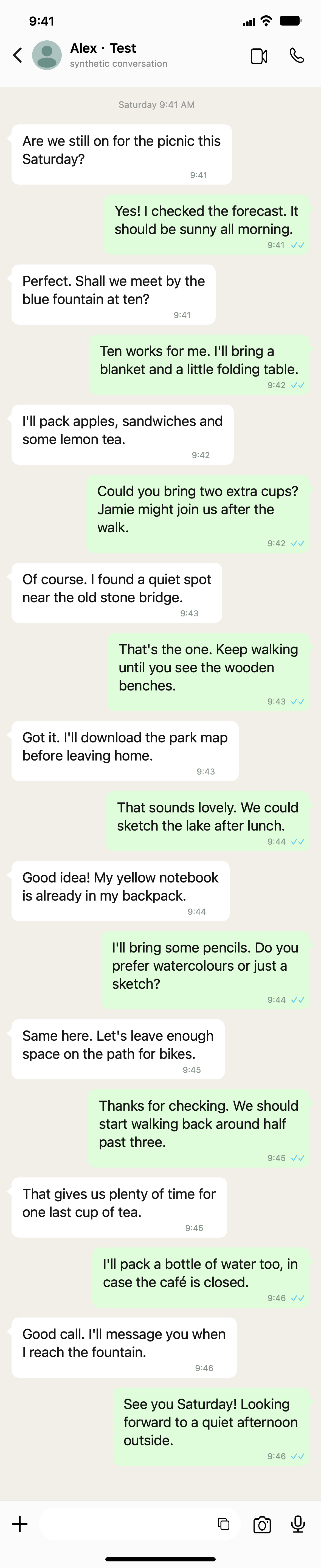
These results were generated by local stitching tests. They do not establish the behavior of the current App Store version or the quality of a file received through a chat app. Check dimensions and text again on the receiving device.
How to screenshot a long text message on iPhone
If a single message fills more than one screen, you do not need to fit the whole bubble into each screenshot. Start at its first line, take a screenshot, then scroll just enough to leave at least two clear lines visible in the next capture. Keep the same text size and continue until you reach the last line. After stitching, read across each join: the repeated lines should appear once, with no sentence missing in between.
Check a short conversation before capturing the whole thread
Use a short, non-private conversation for your first attempt. Capture three screens, keeping one distinctive message visible in each neighboring pair. Compare the saved image with the originals: the shared message should appear once, and the next message should follow it without a gap. This gives you a quick check of the capture method before trying a much longer thread.
After saving, leave the stitcher and open the image in Photos. Check these five points against the three originals:
| Check | What should remain in the saved image |
|---|---|
| Start | The complete first message you chose |
| First join | Shared text from screenshots 1 and 2, appearing once |
| Second join | Shared text from screenshots 2 and 3, appearing once |
| End | The complete final message, including its last line |
| Readability | Small text stays readable when you zoom in |
If a join is missing, keep the originals and recapture that pair with more distinctive shared text. Saving and reopening checks the exported file, not just an in-app preview. Before sending, follow the file-sharing steps.
For a visible example of the overlap principle, watch the existing two-screenshot seam demonstration. It uses an X feed and produces a 591 × 1956 PNG; it is not a three-screen Messages test or proof of how a chat app will transmit your file.
A screenshot of text messages is an image, not an editable transcript or a restorable Messages backup. If you only need a webpage, the iPhone long screenshot guide also explains the built-in Full Page method.
Common mistakes:
- Scrolling sideways or changing zoom between screenshots. Keep the view exactly the same width.
- A new message arriving mid-way and shifting the layout. If that happens, retake from that point.
- Taking screenshots too far apart, so there's no overlap. When in doubt, overlap more.
If a join still fails
- Missing messages: compare the originals on both sides of the gap. A stitcher cannot recover content you never captured. Retake that section with a smaller scroll.
- Repeated text or ghosting: check that the shared messages appear at the same size. Wait for animations to settle, then retake an ambiguous transition with more recognizable text.
- Repeated date labels or input bars: a floating date or keyboard can cover different messages as you scroll. Dismiss the keyboard, wait for the label to settle, and retake the affected pair; do not crop away a message to hide a bad join.
- No result from a shortcut: run it manually, check Photos access and the selected batch, and try two or three fresh screenshots from the same conversation. A large batch or an uncertain match may need the app.
Option 2: Record your screen and convert it
Some apps (Picsew, for example) can turn a screen recording into a long image. Start a screen recording from Control Center, scroll slowly and evenly through the conversation, stop, then open the app and let it process the video.
This is faster for very long threads, but it's sensitive to scroll speed. Scroll too fast and it misses sections; scroll unevenly and you get duplicated lines. For a short thread, overlapping screenshots give you individual frames you can compare directly. LongShot’s workflow in this guide uses still screenshots; do not import a video and expect it to convert the recording.
Which app?
- Tailor — focused on automatic stitching of overlapping screenshots. Check its current App Store offer for pricing and included features.
- Picsew — offers screenshot stitching, scrolling capture, and web snapshots. Check the current feature list and in-app purchases before choosing it.
- Stitch It — good redaction tools, also available on Android.
- LongShot — I made this one. LongShot 1.2 is available on the App Store as a free download, with no ads or account. Images are stitched on your iPhone. On a version that supports the shortcut, after setup, take the screenshots and double-tap the back of your phone to stitch a small matching group into Photos. If it asks you to open the app, do that to review the screenshots. It checks overlap before merging, but still check the result. It includes 10 free stitches each calendar month. A one-time US$0.99 purchase in the US App Store unlocks unlimited saving, sharing, and Shortcut exports for life. After the free allowance, you can still preview results. No subscription; local prices may vary.
Whichever you pick, the overlap tips above are what actually determine whether the result looks clean.
Privacy note
Whether an app uploads images depends on the app. If your conversation is private, check the app's listing for "on-device" processing and avoid apps that require an account for basic stitching.
For export options, see how to share a long screenshot without losing quality.
Before sharing, read the finished image at full size, including the first and last messages and every join. Crop or redact anything you do not intend to share. If sending it as an image makes the text blurry, try sending a file or splitting it into shorter sections. A long screenshot is not a backup of the original chat; use the messaging service’s own export or backup when that is what you need.
Related
- Why iPhone's Full-Page Screenshot Doesn't Work in Most Apps (And What to Do)
- How Much Overlap Do Screenshots Need to Stitch Correctly?
- How to Take a Long Screenshot of a WeChat Conversation on iPhone
Sources checked: 1 · 2 · 3 · 4 · 5 · 6 · 7 · 8 · 9 · 10 · 11 · 12 · 13 · 14 · 15 · 16
Something not working? Email me: longshotapp@163.com
LongShot for iPhone
Combine overlapping screenshots into one long image.