
How to Take a Long Screenshot of a WeChat Conversation on iPhone
Want to capture a WeChat conversation beyond one screen? Here's the reliable way to capture a whole chat as one image, and what to watch for with stickers, images, and timestamps.
Android WeChat users sometimes have a long-screenshot option built into the phone. On iPhone, do not assume the chat view has a Full Page option. Stitching screenshots is one way to keep the chat exactly as it appears on screen.
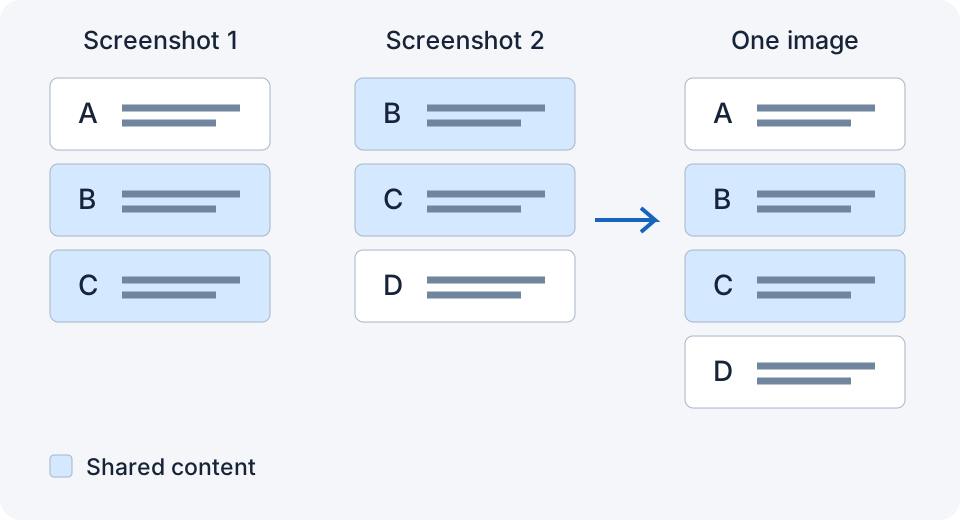
Steps
- Open the chat and load the messages and images you need. Then, if you want to stop new arrivals, turn on Airplane Mode and check Wi-Fi is off. Unloaded content will not appear while offline.
- Scroll to where you want to start. Screenshot.
- Scroll until the last bubble you captured is near the top. Screenshot. Repeat.
- Turn Airplane Mode off. Open a stitching app and merge.
WeChat-specific tips
- Timestamps. Time labels can help you find your place, but they may repeat. Include message text as well.
- Stickers and images. Wait for them to fully load before the first screenshot, or they'll pop in and shift the layout.
- Long voice messages. The bar records the visible message, not its audio. Include nearby text so similar voice-message bars are not the only overlap.
- Quoted messages and mini-program cards. These can be tall; make sure a full one is in the overlap rather than half.
- Dark mode. Works fine, just keep it consistent across all shots.
Sharing the result
WeChat compresses images you send in chat. To keep the long screenshot sharp, send it as a file (the "File" option in the + menu) or choose "Original" in WeChat’s own photo picker when available. That checkbox is not a general option in Apple Photos; for a very tall image, sending the PNG as a file is the safer choice.
Which app
Tailor, Picsew, and Stitch It all handle WeChat chats. I made LongShot for this exact routine: take the shots, double-tap the back of the phone, a small matching group can be stitched into Photos after setting up a compatible version and shortcut. LongShot does not upload the screenshots; sharing or iCloud Photos can transfer them outside the phone, which matters for private conversations.
Related
- How to Take a Long Screenshot of a Text Conversation on iPhone
- Do Screenshot Stitcher Apps Upload Your Photos? A Privacy Check
- How Much Overlap Do Screenshots Need to Stitch Correctly?
Sources checked: 1 · 2 · 3 · 4 · 5 · 6 · 7 · 8
Something not working? Email me: longshotapp@163.com
LongShot for iPhone
Combine overlapping screenshots into one long image.