
Which long screenshot method should you use?
How to screenshot a long page in Safari
- Open the page in Safari and let it finish loading.Expand the text you want to include. A screenshot cannot recover content that the page has not loaded.
- Take a normal screenshot.On a Face ID iPhone, briefly press the side button and volume up together. On an iPhone with a Home button, press the side or top button and Home together.
- Open the screenshot editor and choose Full Page.Tap the thumbnail if your iPhone shows one. On newer iOS versions the editor may open directly; screenshot preview settings can change this behavior.
- Check the full-page preview.Move through the preview on the right and check the beginning and end. Crop away anything you do not want to keep.
- Save the result.Use the save or Done control. Choose Save to Photos for an image when available, or Save PDF to Files for a PDF.
Apple's current guide includes both Save to Photos and Save PDF to Files. Full Page is available in supported views, not every app, and the controls differ by iOS version. Apple's screenshot instructions →
How to take a long screenshot of a chat or app
How to take a long screenshot of text messages on iPhone →
- Start at the first message you want to keep.Dismiss the keyboard and wait for messages, images, and animations to settle.
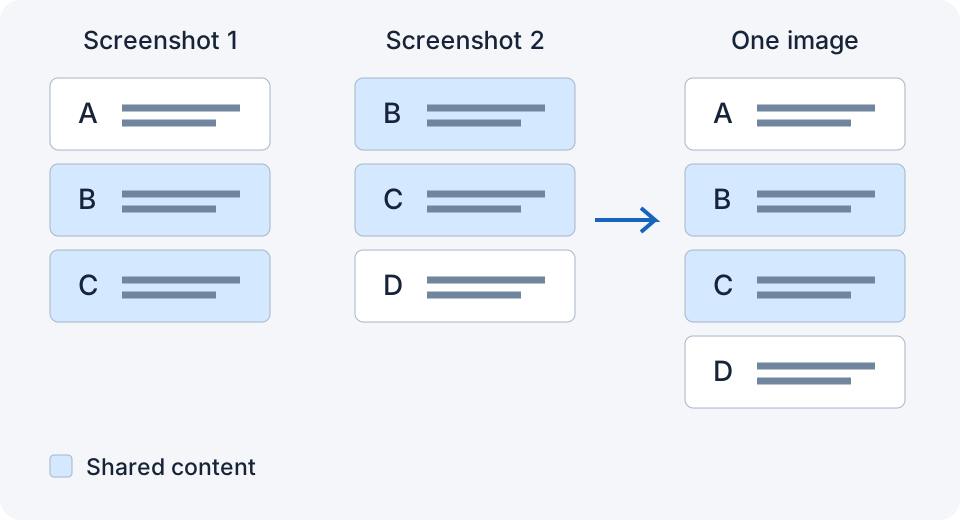
- Take a screenshot, then scroll a little.Keep at least two clear lines or one distinctive complete message from the previous screenshot visible in the next one.
- Repeat in the same direction.Keep the phone orientation, text size, and view width unchanged. If a new message shifts the conversation, retake that transition.
- Combine the screenshots in a stitching app.Open the app after capturing the sequence. Allow access to the screenshots you want to use, then let it find the sequence or select the images yourself.
- Read the joins before saving.Check the first and last messages and each transition. Missing content needs another screenshot; repeated text or a shifted join needs a clearer overlap.
How to save a long screenshot as an image or PDF
For a Full Page capture, choose the image or PDF option shown by your iOS version. Save to Photos puts an image in Photos; Save PDF to Files lets you choose a folder in Files. After stitching, inspect the preview and use the app's save or share control. LongShot exports a PNG at the original image width.
Open the saved result at full size before sharing. If a messaging service makes it blurry, send it as a file or split it into shorter sections. Keeping the originals makes it easier to repair a missing part.
Why is Full Page missing on my iPhone?
Full Page depends on the app and the current view providing a complete document to the screenshot system. It is not a switch that enables scrolling capture everywhere. First try a normal webpage in Safari. If that works but your chat has no Full Page option, use overlapping screenshots for the chat.
Can you take a scrolling screenshot on iPhone 17, 16, 15, or 13?
Yes. To take a long screenshot on iPhone 17 or any recent model, the content and iOS version matter more than the model number. Face ID models such as iPhone 11 through 17 use side button + volume up. The iPhone 8 uses side button + Home. The same capture-and-stitch method applies when your chosen app supports the installed iOS version.
On iOS 16, Full Page uses the PDF-to-Files path. iOS 17 and later also support saving a full-page image to Photos. On iOS 26, a new screenshot can open full screen instead of as a thumbnail; Full Page still appears only for supported content. LongShot requires iOS 16 or later, so iPhone 7 Plus cannot run it.
Can I make a long screenshot without installing an app?
Yes, when Full Page is available. For other content, the built-in Shortcuts app can stack images vertically, but it does not detect and remove overlap: crop the repeated parts first. Screen recording is another way to share a conversation, but it produces a video rather than a long image.
More help for a clean result
If you use LongShot, take the screenshots yourself, open the app, check the preview, then save. Screenshot processing happens on your iPhone. Back Tap is optional and needs a compatible app version and one-time setup. Set up Back Tap →
Something not working? Email me: longshotapp@163.com