
How to Take a Scrolling Screenshot on iPhone Without Installing an App
Make a long screenshot on iPhone without another app: use Full Page or crop and combine images with Shortcuts. Includes WhatsApp steps and the limits of screen recording.
You can get a long screenshot on iPhone without downloading anything. It works well in some situations and badly in others. Here's the honest version.
Method 1: Full Page (Safari and other supported views)
- Take a screenshot.
- On iOS 17 or 18, tap the thumbnail, then the "Full Page" tab at the top. On newer versions, the screenshot editor may open directly.
- Tap Done, then Save PDF to Files or Save to Photos. iOS 17 and later support saving full-page captures as images too; cropping is optional.
This is the best option when it's available. It isn't available in most third-party apps; see Why iPhone's Full-Page Screenshot Doesn't Work in Most Apps (And What to Do) for why.
Method 2: Shortcuts "Combine Images"
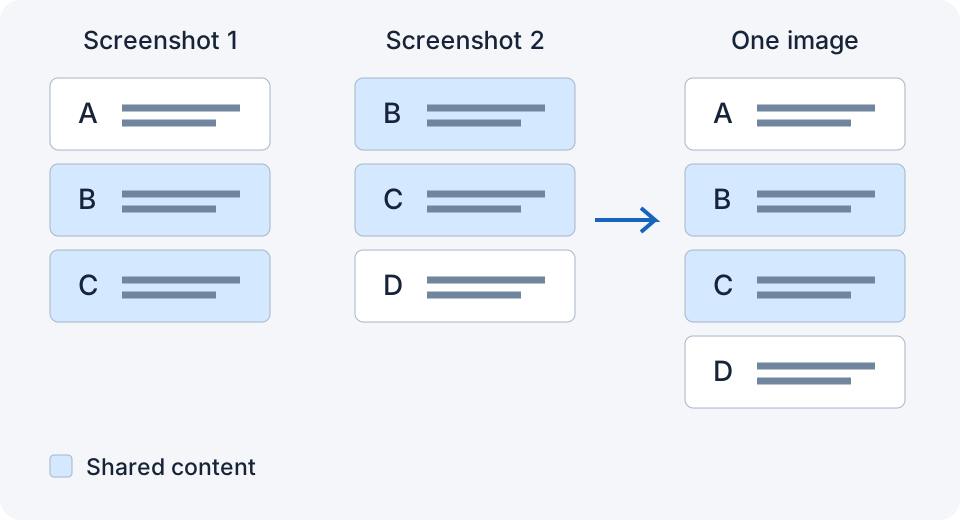
The Shortcuts app has an action that stacks images vertically. It doesn't detect overlap; it just puts one under the next. So:
- Prepare screenshots with no repeated content: take overlapping shots, then manually crop the repeated parts. Scrolling exactly one screen is hard and can miss a line.
- Open Shortcuts → new shortcut → add "Select Photos" (allow multiple) → add "Combine Images" (Vertically, spacing 0) → add "Save to Photos" (called "Save to Photo Album" in some older versions).
- Run it and pick your screenshots. Check their order in the saved image.
You'll get a stacked image. With spacing set to 0, the action adds no gap. Repeated content and status bars remain unless you crop them out first. For a quick "here's the whole thing" it's fine; for anything you'd share publicly it usually isn't.
Method 3: Screen recording
Record from Control Center while scrolling, then share the video instead of an image. It's not a screenshot, but for sending a long conversation to one person it's often good enough, and it needs nothing.
How to take a long screenshot on WhatsApp on iPhone without another app
If the WhatsApp screenshot editor does not offer Full Page, there is no equivalent of Android’s scrolling capture button to turn on for that screen. You can still make one image using the built-in Shortcuts method above:
- Open the conversation, dismiss the keyboard, and take consecutive screenshots with a distinctive repeated message between each pair.
- In Photos, edit copies of the screenshots. Remove repeated messages and the extra top or bottom bars from intermediate images, keeping each message complete somewhere in the sequence.
- Run the Select Photos → Combine Images (Vertically, spacing 0) → Save to Photos shortcut on the prepared images, in reading order.
- Inspect the result. A repeated message means one crop still overlaps; a missing message means you need to restore the crop or capture that part again.
This takes manual work: Combine Images does not align bubbles or remove overlap. If you only need to show someone the conversation, a screen recording may be enough, but it is a video. Installing a dedicated stitcher is a separate choice if you want help aligning the screenshots.
For ordinary webpages, follow the Full Page steps in the main iPhone guide. For capture problems in a chat, see the text-message screenshot guide.
Where the built-in methods fall short
| Need | Built-in | Reality |
|---|---|---|
| Chats, comments, most apps | Full Page | Often unavailable; check the current view |
| Clean seams | Combine Images | No overlap detection; crop repeated content yourself |
| One image, full resolution | Screen recording | It's a video |
When an app is worth it
If you do this more than occasionally, a stitching app can reduce manual cropping and help align overlapping screenshots. Tailor and Picsew are the established ones. I built LongShot to be the least-friction version: take overlapping screenshots, double-tap the back of the phone, and a small matching group can be saved to Photos, once a compatible version and shortcut are set up. It checks overlap, but still check the result. LongShot 1.2 is available on the App Store as a free download, with 10 free stitches each calendar month. After that, you can still preview results; a one-time US$0.99 purchase in the US App Store unlocks unlimited saving, sharing, and Shortcut exports for life. No subscription; local prices may vary.
Related
- Why iPhone's Full-Page Screenshot Doesn't Work in Most Apps (And What to Do)
- How to Take a Long Screenshot of a Text Conversation on iPhone
- Set up Back Tap for LongShot: an illustrated guide
Sources checked: 1 · 2 · 3 · 4 · 5 · 6 · 7 · 8 · 9 · 10 · 11
Something not working? Email me: longshotapp@163.com
LongShot for iPhone
Combine overlapping screenshots into one long image.