
How to Fix Ghosting and Misaligned Seams in Stitched Screenshots
Doubled text, a visible line, or a jump in the middle of your long screenshot? Here's what causes it and how to get a clean result.
You stitched five screenshots and the result has a line of text that appears twice, or a seam where the image jumps. That's ghosting. It's almost always one of four causes.
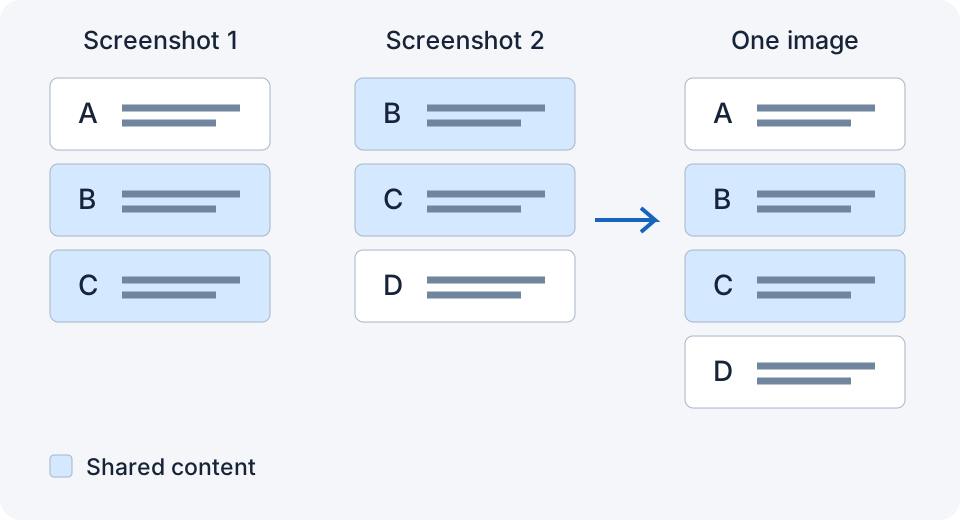
Cause 1: Not enough overlap
The app matches screenshots by finding a region that appears in both. If the overlap is only a few pixels, it may fail to find a confident match, reject the pair, or align it incorrectly. Fix: when you scroll between shots, leave at least at least two clear lines of text or one complete, distinctive message visible from the previous screenshot.
Cause 2: Something moved between shots
A new message arrived. An image finished loading. A "typing…" indicator appeared. Anything that shifts the layout between two screenshots breaks the match. Fix: wait for the page to settle. For content already loaded, Airplane Mode with Wi-Fi off can stop new messages; it also stops new content loading.
Cause 3: The view or layout changed
You zoomed slightly or rotated. A keyboard appearing can also change the visible area or shift the content, even if the screenshot width stays the same. Fix: keep the phone still and the view untouched between shots. If the keyboard was up in one, retake that one.
Cause 4: The app guessed instead of checking
Even an app that matches overlap can choose the wrong repeated region. A visible seam does not tell you which algorithm it used. Fix: use an app that verifies overlap and tells you when it can't, so you can retake that pair rather than discovering the problem later.
Repeating elements
Sticky headers, tab bars, and floating buttons appear in the same place in every screenshot. Some stitchers handle them automatically. Otherwise, try manual seam adjustment or crop consistently while preserving the shared content; cropping just one side can create a gap.
A quick checklist
- Overlap: at least two clear lines or one distinctive message.
- Same width, no zoom, no keyboard.
- Page fully loaded, nothing animating.
- Retake the pair where the seam is; you don't need to redo everything.
I ran into this often enough that I built LongShot to check the overlap before it stitches. If two screenshots don't connect cleanly it says so and shows a manual picker, when it cannot find a reliable group. This reduces errors; it does not replace checking the final image. Whatever app you use, the four causes above cover nearly every case.
Related
- How Much Overlap Do Screenshots Need to Stitch Correctly?
- How to Screenshot an Entire Instagram or TikTok Comment Thread on iPhone
- Tailor vs Picsew vs LongShot: Which iPhone Screenshot Stitcher Should You Use?
Sources checked: 1 · 2 · 3 · 4 · 5 · 6 · 7 · 8
Something not working? Email me: longshotapp@163.com
LongShot for iPhone
Combine overlapping screenshots into one long image.