
How to Screenshot an Entire Instagram or TikTok Comment Thread on iPhone
When a comment section has no Full Page option, overlapping screenshots can capture it. Here's how to capture the whole thread as one image, and how to avoid the mistakes that break it.
Comment sections are the worst case for screenshots: they're long, they load as you scroll, and new comments can appear while you're capturing. Full-page screenshot doesn't work here, so you'll stitch.
Before you start
- Wait until the comments and replies you need have loaded. If you then use Airplane Mode to stop new arrivals, also check that Wi-Fi is off; more comments will not load while offline. New comments arriving mid-capture can shift the layout.
- Expand "View replies" for any replies you want, before you take the first screenshot.
- Don't zoom. Keep the view exactly the same width for every shot.
Steps
- Scroll to the top of the comments you want.
- Take a screenshot (side button + volume up on Face ID models; side button + Home on supported Home-button models).
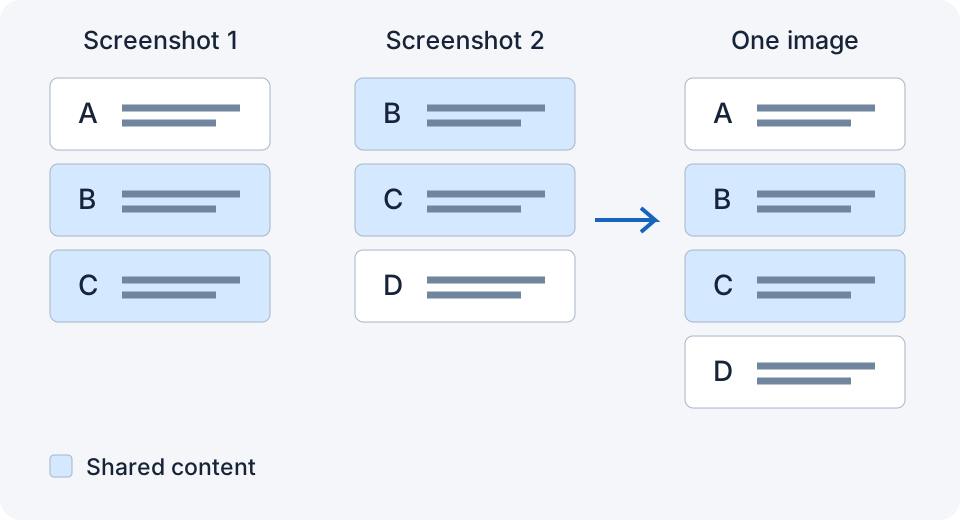
- Scroll down until the last comment you captured is still visible near the top of the screen. That shared comment is the overlap.
- Screenshot again. Repeat to the end.
- Open a stitching app and let it merge them.
How much overlap? One full, distinctive comment; leave at least two clear text lines. If comments are very short, include more than one. Apps that verify overlap need a distinctive region to match; a sliver of a profile picture isn't enough.
Common problems
- Duplicated or missing comments in the result. Usually not enough overlap, or a comment loaded between shots. Retake from that point with more overlap.
- A "Load more" button in the middle. Tap it before screenshotting that section.
- Sticky headers repeating. Some apps pin the post header at the top; a stitcher may ignore it. If it does not, try its manual seam controls, or crop consistently without removing the shared content.
- Blurry result. The app may have downscaled it or used strong JPEG compression. JPEG alone does not mean it will look blurry. Use an app that saves full-resolution PNG.
Which app
Tailor and Picsew both handle this. I made LongShot for exactly this use: take the screenshots, double-tap the back of your iPhone, and a small matching group can be saved to Photos as an original-width PNG, with no ads, after setting up a compatible version and its shortcut. If it cannot verify the overlap, follow its message and open the app when asked. Still check the final thread for missing or repeated comments.
Related
- How to Take a Long Screenshot of a Text Conversation on iPhone
- How Much Overlap Do Screenshots Need to Stitch Correctly?
- How to Fix Ghosting and Misaligned Seams in Stitched Screenshots
Sources checked: 1 · 2 · 3 · 4 · 5 · 6 · 7 · 8
Something not working? Email me: longshotapp@163.com
LongShot for iPhone
Combine overlapping screenshots into one long image.