
How to Screenshot a Full Receipt or Order Page on iPhone
Order confirmations and receipts rarely fit on one screen, and a shopping app may not offer full-page capture. Here's how to save the whole thing as one image, plus the PDF alternative.
You need to send a receipt to your company, keep proof of an order, or dispute a charge. The order page is three screens long, and the app doesn't offer Full Page. Two good ways to do it.
Option A: Save as PDF (if the app allows it)
Some apps let you export or print the page. In Safari, use Share → Markup to save a webpage as PDF. If a page offers Print, you can also open the print preview and share it as a PDF. Check the preview first: a page may omit unloaded or collapsed content.
PDFs are useful for receipts. PDFs exported from text pages may keep text selectable; a PDF made from a screenshot is still an image. Check which format your expense process accepts.
Option B: Stitch screenshots into one image
When there's no Print or PDF option, stitch:
- Scroll to the top of the order.
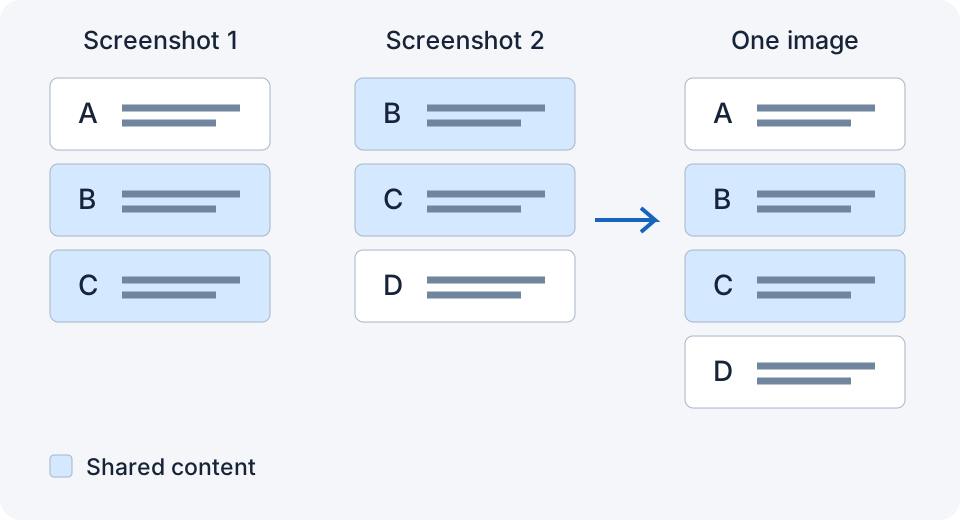
- Screenshot. Scroll until the last line you captured is near the top. Screenshot again. Repeat to the bottom, including totals and the order number.
- Merge with a stitching app.
Tips specific to receipts:
- Expand any collapsed sections ("View 12 items", "Delivery details") first.
- Make sure the order number and date are in the capture; they're often at the very top or very bottom.
- If the app hides part of the card number or address, keep that masking unless your expense process specifically requires more information.
What to avoid
- Don't zoom to make text bigger between shots; it breaks the stitch.
- Don't crop before stitching; crop the final image instead.
- Don't rely on a screen recording for receipts; you want a still image or PDF.
Which app
Use a stitcher that can handle the overlap, or one with manual seam controls. I use my own, LongShot, because receipts are exactly where I want zero effort: take the shots, double-tap the back of the phone, and a small matching group can be saved to Photos, after setting up a compatible version and shortcut. It verifies overlap first, but still check every line item and total; no stitcher can guarantee there are no duplicated or missing lines.
Related
- How to Take a Long Screenshot of a Text Conversation on iPhone
- How to Take a Scrolling Screenshot on iPhone Without Installing an App
- How to Fix Ghosting and Misaligned Seams in Stitched Screenshots
Sources checked: 1 · 2 · 3 · 4 · 5
Something not working? Email me: longshotapp@163.com
LongShot for iPhone
Combine overlapping screenshots into one long image.